Visual sales sequences with AI, conditions and tasks
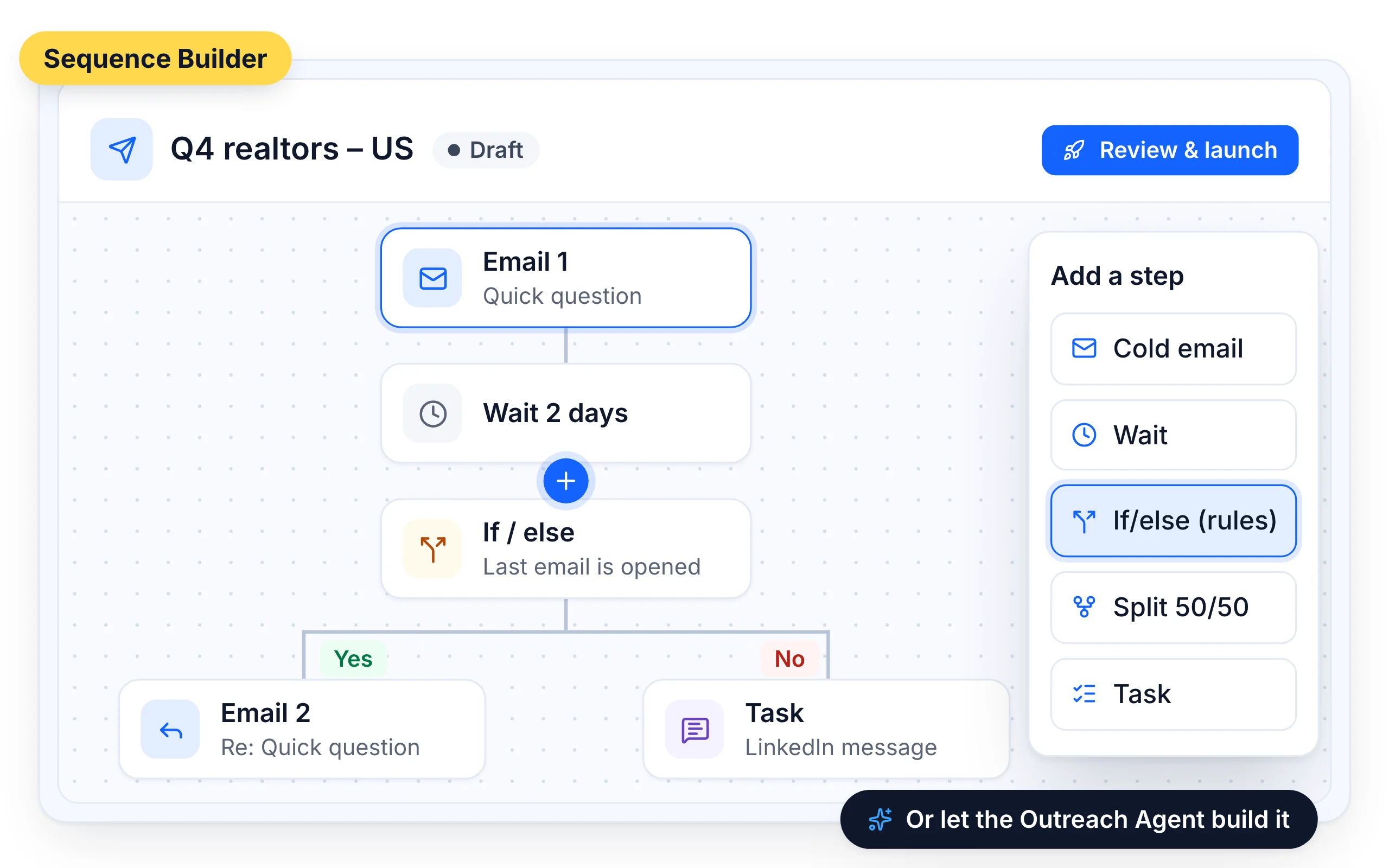
Build a sequence by adding emails, waits, conditions and tasks, or let the Outreach Agent write it for you.
14-day free trial. No credit card required.
Trusted by 12,000+ businesses




Start the way you like
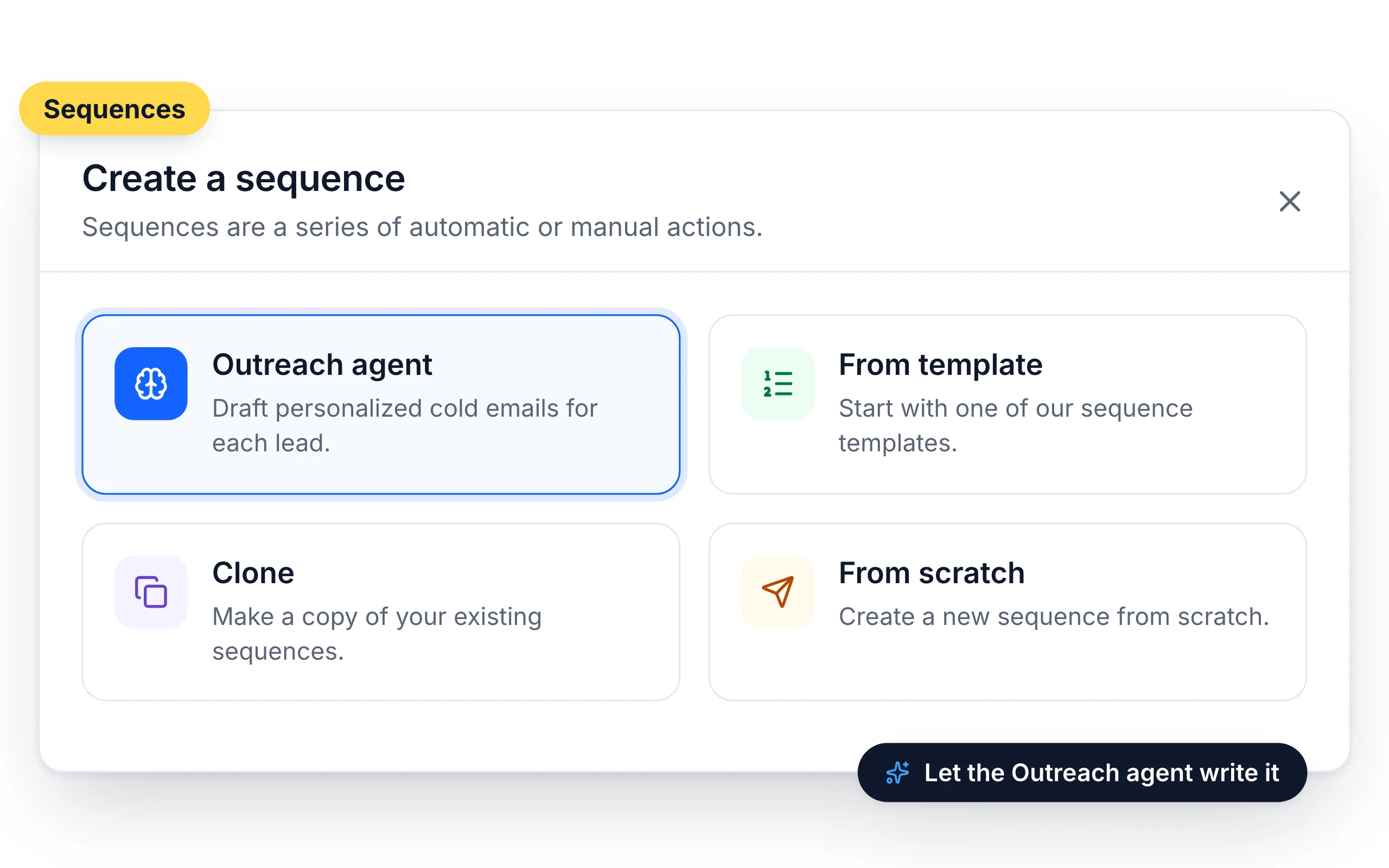
Create a sequence with the Outreach Agent, from a template, by cloning an existing one or from scratch.
Branch on what each lead does
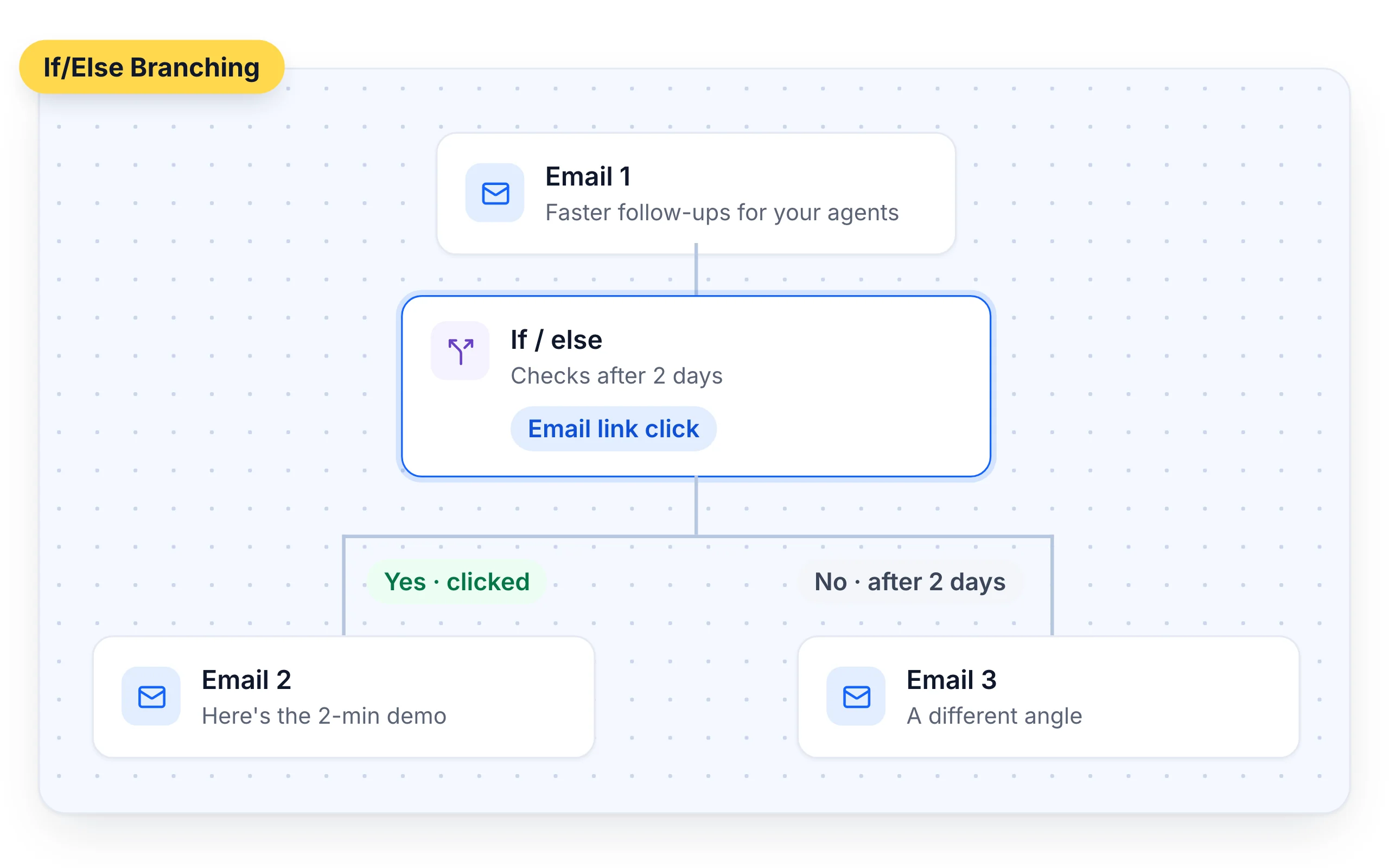
Add an If/Else step that checks whether a lead opened, clicked or replied, and send each group down a different path. Use a Split 50-50 step to compare two paths.
Evergreen sequences
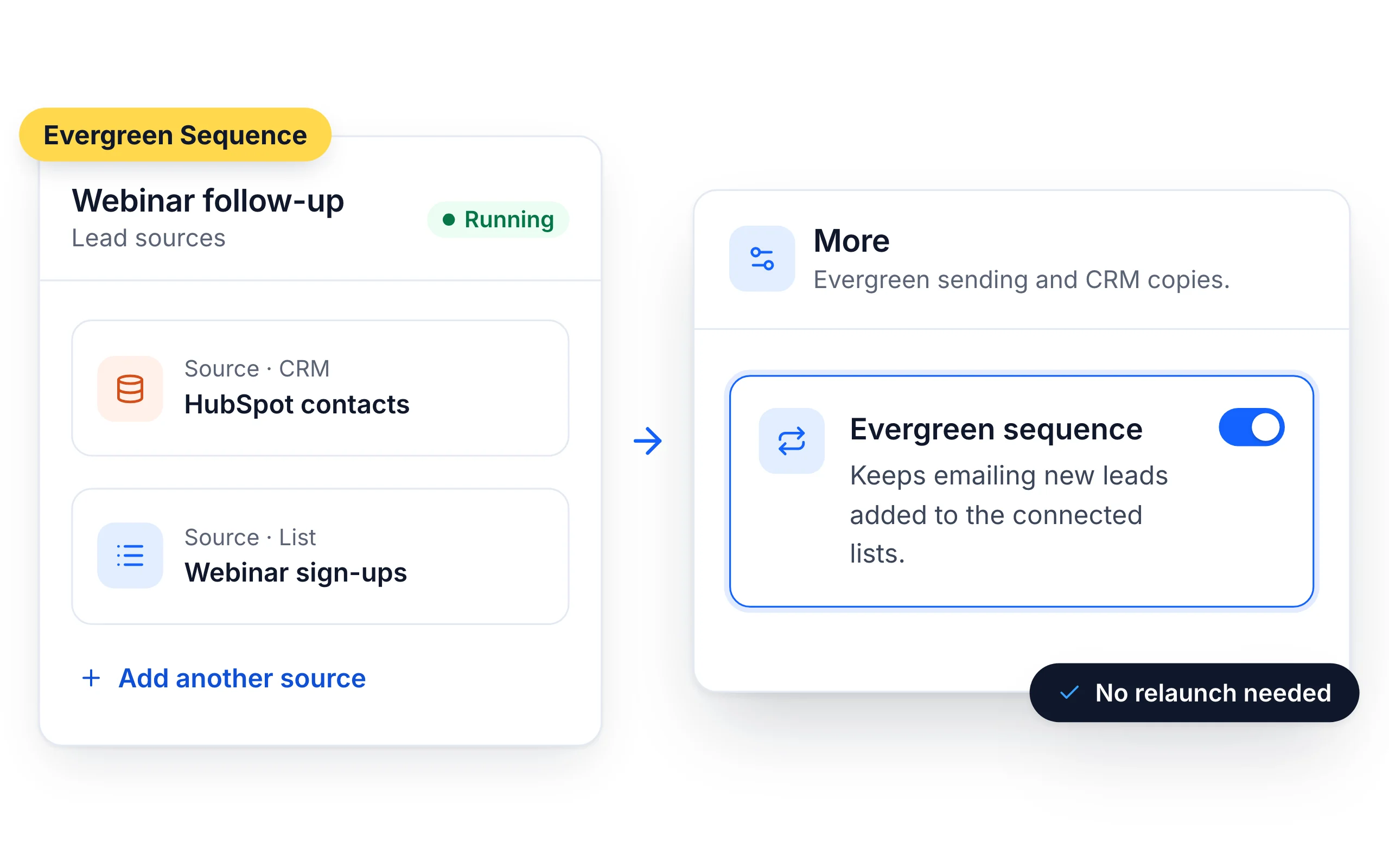
Connect a list or CRM and new leads join the sequence as they're added, without relaunching it.
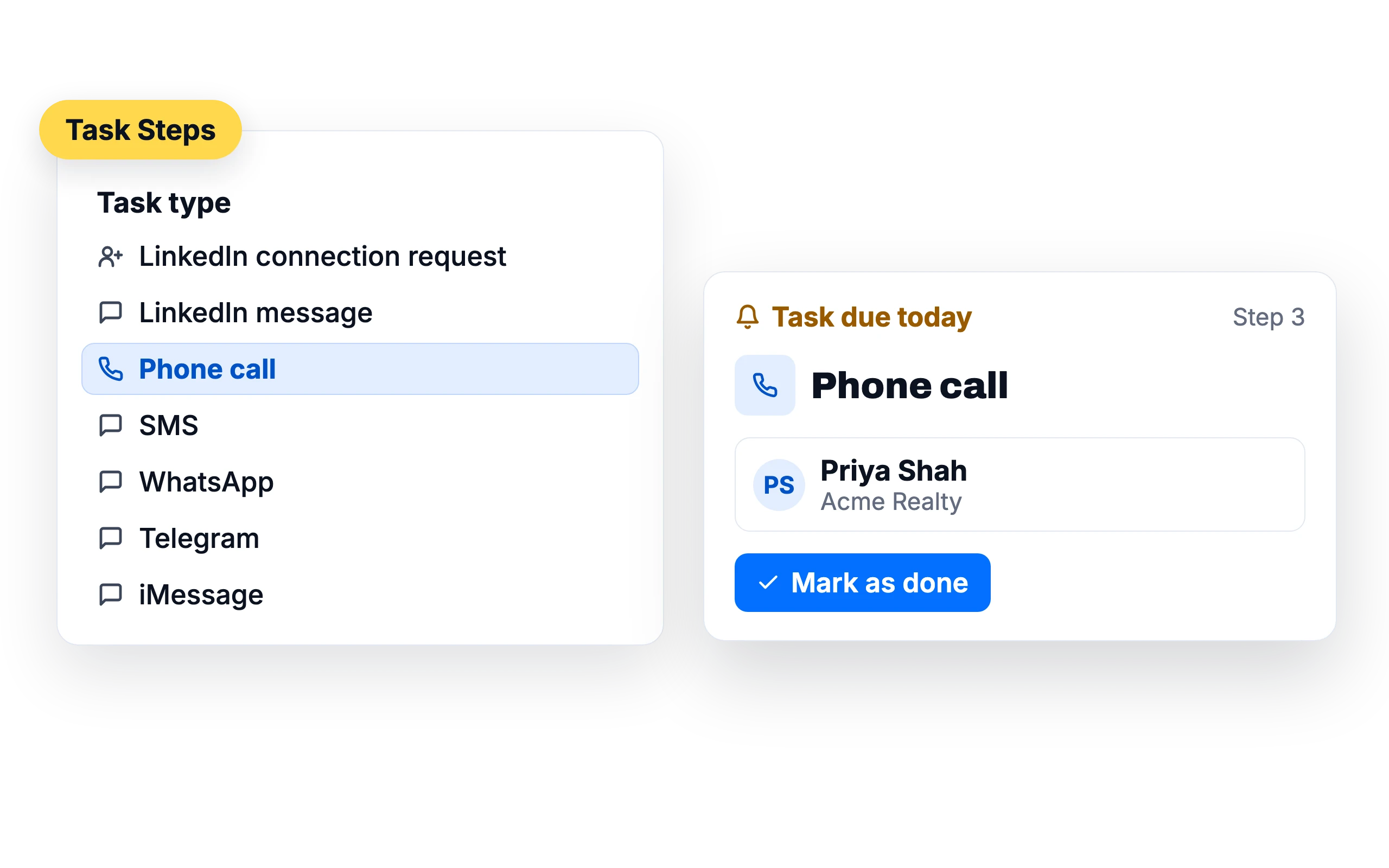
Add LinkedIn, call and WhatsApp steps as tasks
Add tasks for a LinkedIn connection request, LinkedIn message, phone call, SMS, WhatsApp, Telegram or iMessage. SalesBlink reminds the rep when each task is due, and the rep completes it by hand.
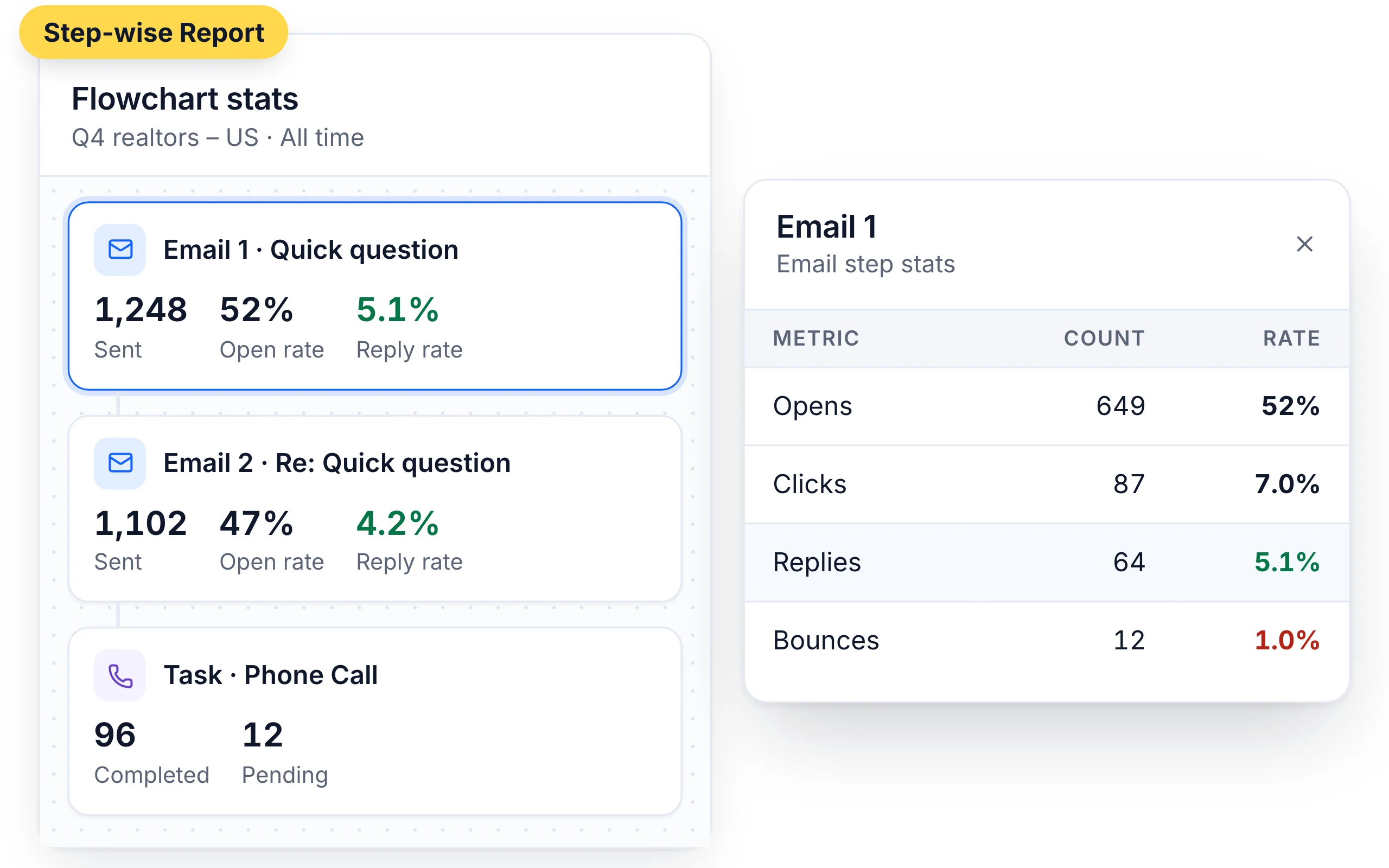
Reports for every step
See opens, clicks, replies and bounces for each step of the sequence.
Learn about Reports and Dashboards



Run it from your agent
Ask the Copilot or your own agent to "build a 4-step sequence for SaaS founders".
What customers say
4.7/5 on Capterra (286 reviews)4.5/5 on G2 (311 reviews)
5.0 on Capterra
“For now, what I value most, as a novice user, is its visual sequence builder: I drag blocks, define conditions, and in an instant I have a campaign ready for A/B testing without having to write code or get lost in menus.”
Frequently Asked Questions
What is a sales sequence?
A sales sequence is a planned series of emails and other steps sent to a lead over days or weeks, stopping when they reply.
Are LinkedIn and call steps automated?
No. They're tasks that remind your rep to act. Only email steps send automatically.
What is an evergreen sequence?
An evergreen sequence keeps running and enrolls new leads as they're added to its connected list or CRM.
Can AI write the sequence?
Yes. Choose the Outreach Agent when you create the sequence.
Can I edit a sequence while it's running?
Yes. You can change the steps and the settings of a running sequence. Emails a lead already received are never sent again. All pending emails and tasks are recalculated from the updated flowchart, and leads continue from their next pending step. A new email step only reaches leads who haven't passed that point yet. Completed sequences can't be edited, so clone them instead.
Can I use the same mailbox in several sequences?
You can, but one mailbox or one mailbox folder per sequence works better. A mailbox's daily limit is shared across every sequence that uses it, so the sequence scheduled first uses up the limit and the others send fewer emails. Per-sequence stats are also easier to read with dedicated mailboxes. SalesBlink warns you when a mailbox is already in use but still lets you launch.
What happens when a lead replies?
With Stop Sequence on Reply turned on, the sequence ends for that lead when they reply, so they get no more follow-ups. You can also choose to stop it for every lead on the same company domain, so other leads at that company stop receiving steps too. Reply tracking needs to be on for SalesBlink to detect the reply.
How do reps know when a task is due?
SalesBlink sends task reminders by email, or in Slack if you've connected it. Due tasks also appear on the Tasks page, where reps can filter by sequence, owner, date range or tasks due today, mark a task complete or snooze it for later. Task conditions, such as "Received a Reply & Meeting Scheduled", can drive an If/Else branch in the sequence.
Does SalesBlink pause a sequence when too many emails bounce?
Yes, if you turn on auto-pause on bounce and set a bounce threshold in the sequence settings. When the bounce rate goes above it, the sequence shows Paused due to bounces. Before restarting, check your mailboxes' Health and remove invalid addresses from the list. Editing the settings doesn't restart it, so click Launch Sequence again when you're ready.