 New: SalesBlink is now in ChatGPT
SalesBlink for agencies
Run AI cold email for every client, under your brand
Stop juggling a separate account for every client. Give each client a workspace, put your brand on the app and let clients see their own campaigns and reports.
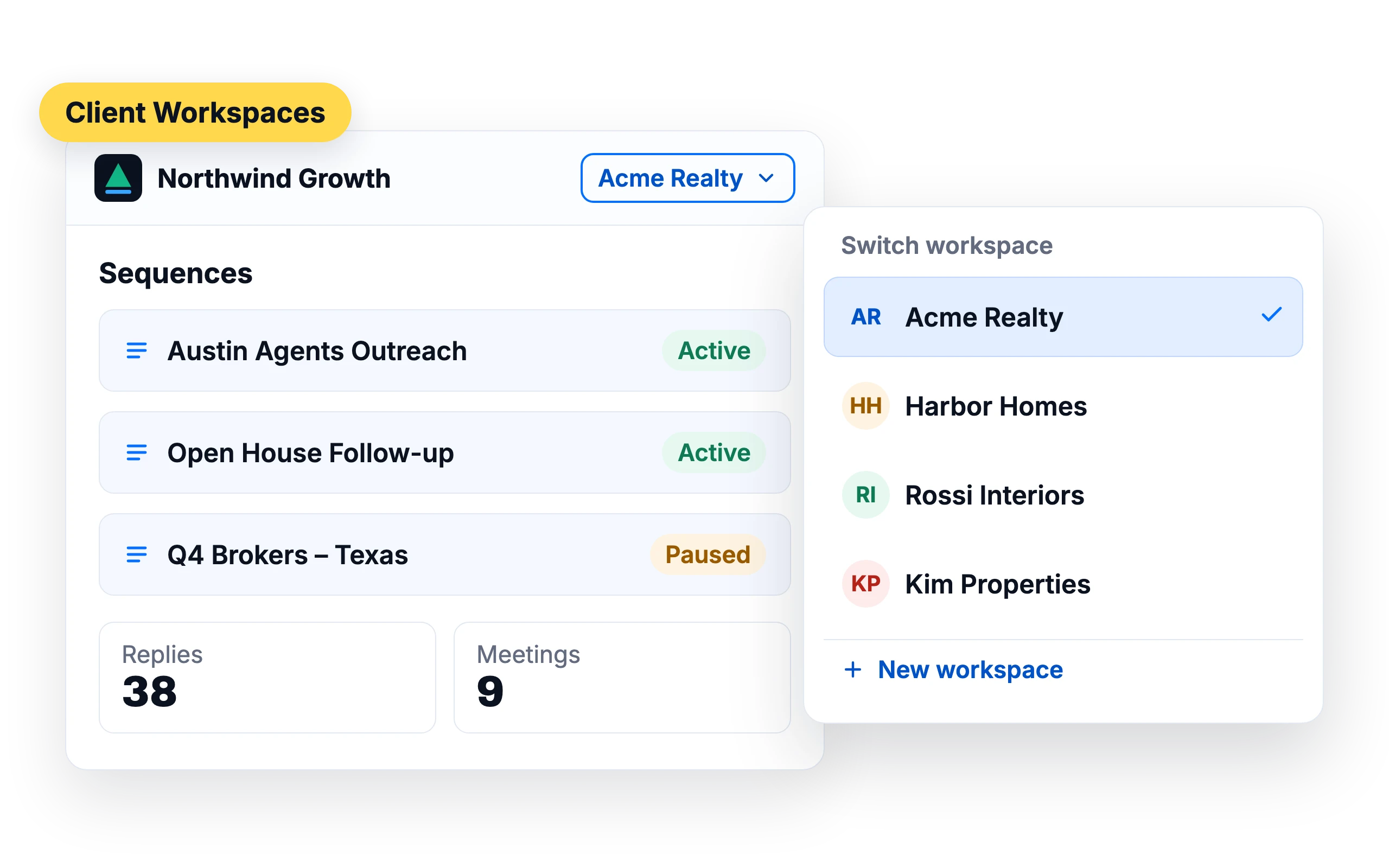
A workspace for every client
Each client's lists, senders, sequences and replies live in their own workspace. Switch between clients from the top bar.
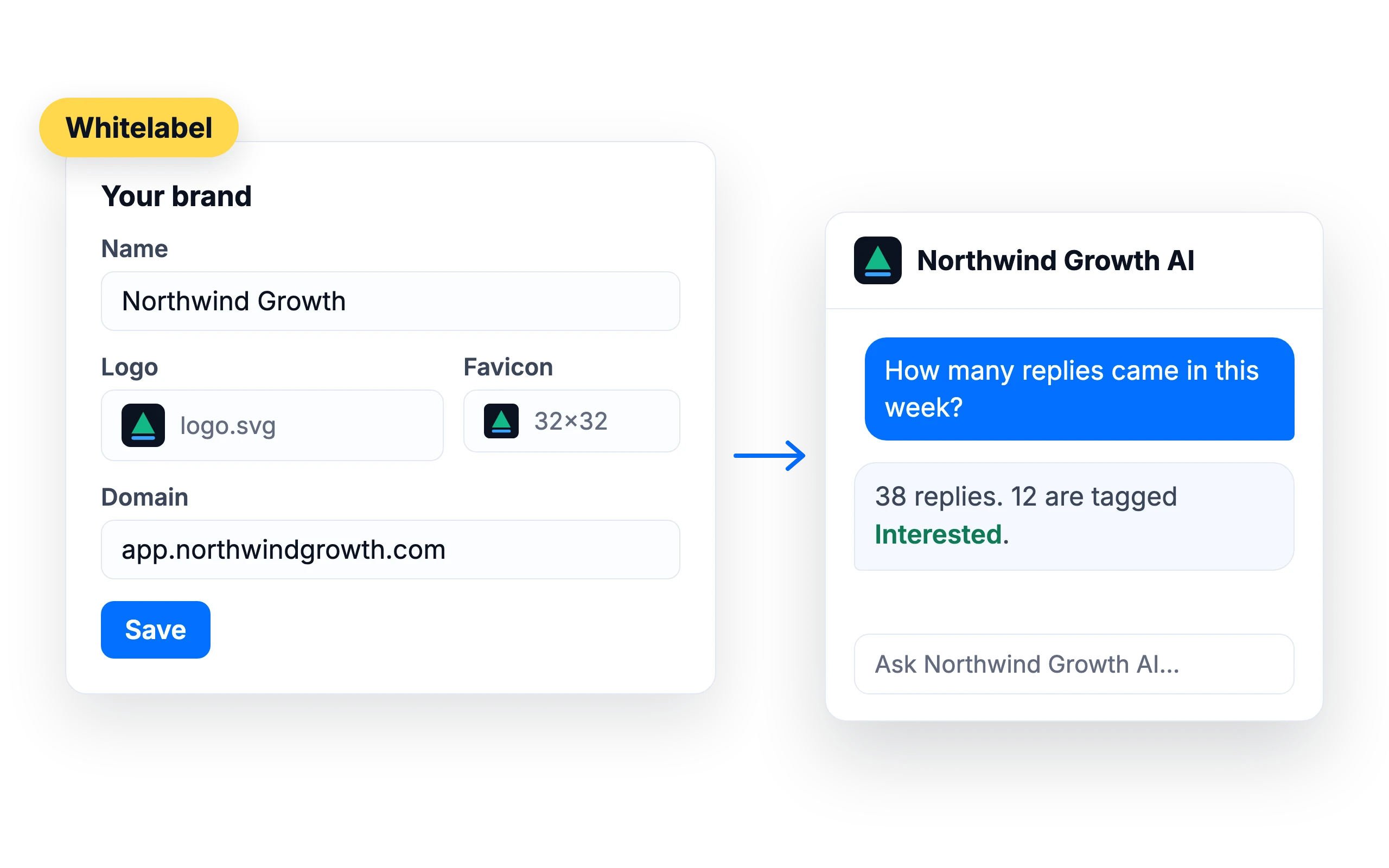
Your brand on the app
Replace SalesBlink's name, logo and favicon with yours, and serve the app from your own domain. The AI Copilot takes your agency's name too, so clients see "{Your agency} AI".
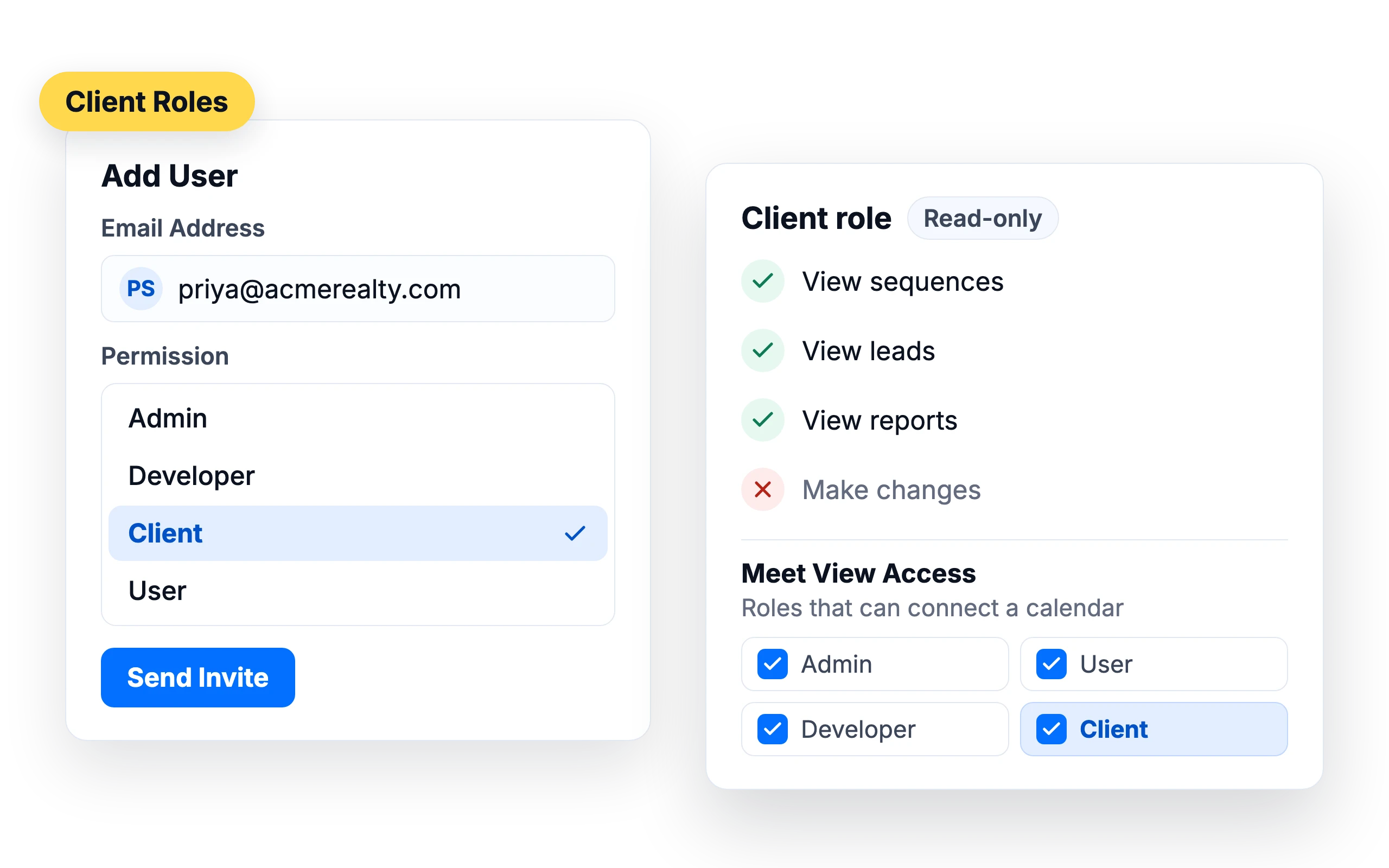
Clients see only what you allow
Invite clients to their workspace and choose their role: Admin, Developer, User or Client. The Client role is read-only: clients can view their campaign data, leads and reports, and can connect their own calendar to the Meeting Scheduler if you allow it.
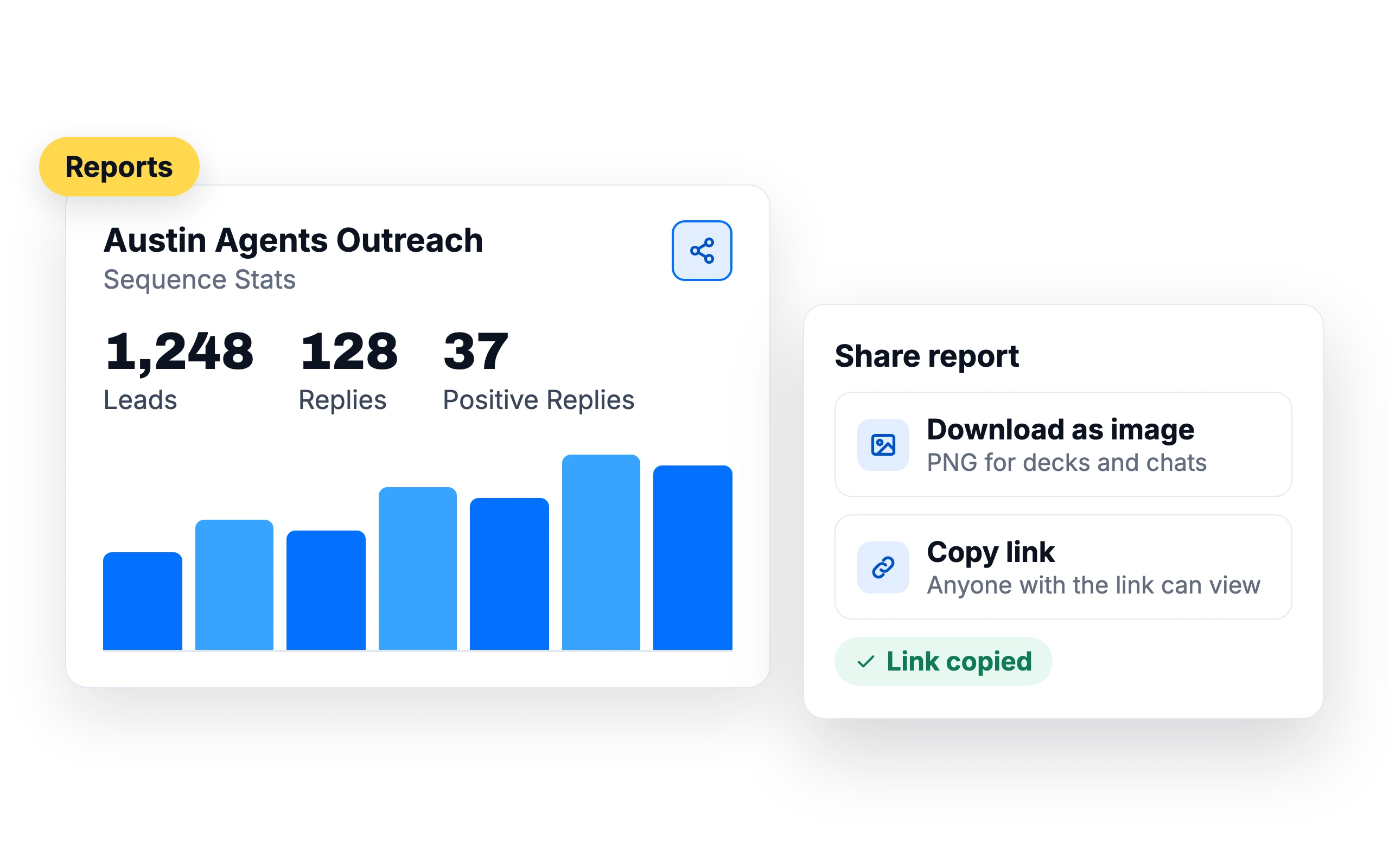
Reports clients understand
Share a sequence report as an image or a link, or let clients log in and see live results.
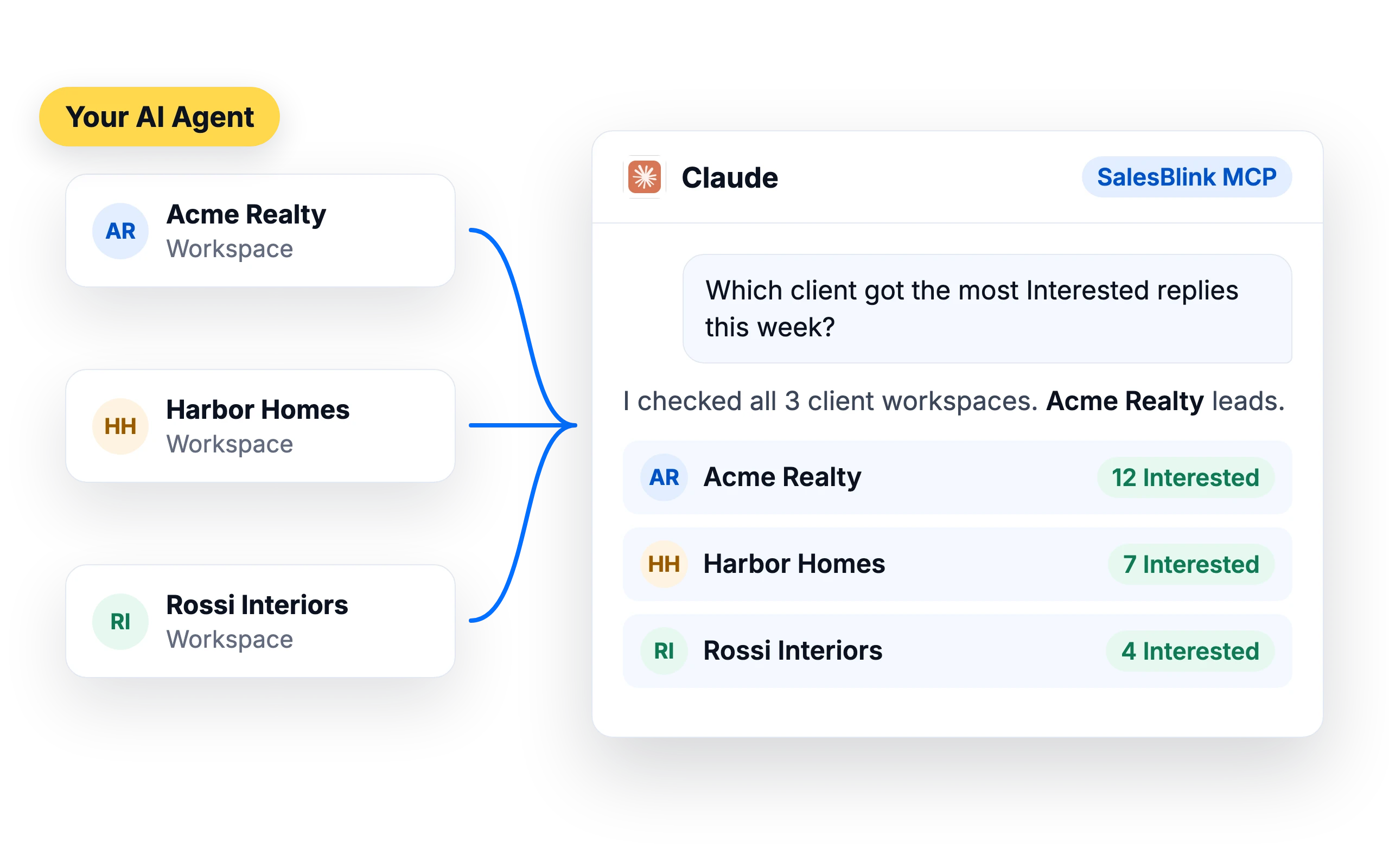
Run every client from your AI agent
Connect ChatGPT, Claude or another AI agent over MCP and work across your client workspaces from one chat.
SalesBlink for AI agents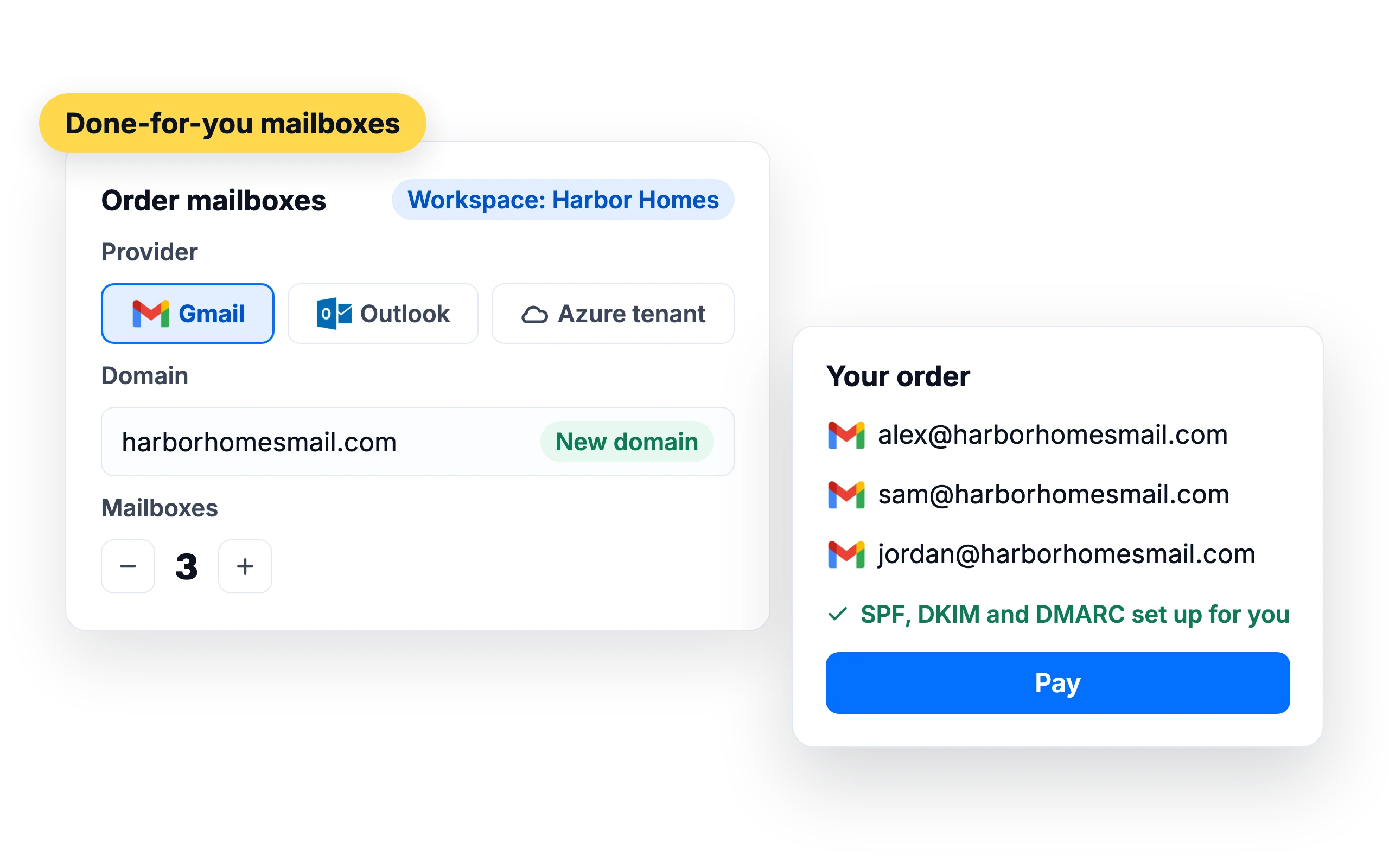
Mailboxes for new clients
Order Gmail, Outlook or Azure-tenant mailboxes and domains for a client without leaving SalesBlink.
Done-for-you mailboxesWhat customers say
4.7/5 on Capterra (286 reviews)4.5/5 on G2 (311 reviews)
5.0 on Capterra
“As someone managing outreach across multiple clients, SalesBlink has been a huge time saver. The ability to run campaigns from multiple domains without worrying about additional sender costs is fantastic.”
Frequently asked questions
Can clients log in?
Yes. Invite them to their workspace with the role you choose. They see only that workspace.
Will clients see the SalesBlink name?
Not with Whitelabel. The app shows your name, logo and domain, and the Copilot uses your agency's name.
How many clients can I manage?
Each client gets its own workspace. The pricing page lists how many workspaces you can create.
PricingCan I manage clients from my AI agent?
Yes. The SalesBlink MCP server includes workspace tools, so ChatGPT, Claude or another agent can work across your client workspaces.
SalesBlink for AI agentsHow do I put the app on my own domain?
In Account → Whitelabel, add your domain in the Domain section. For a subdomain such as app.yourcompany.com, which is the recommended setup, add a CNAME record pointing to run.salesblink.io. For a root domain, add an A record pointing to 143.244.213.24. Then click Verify Record. DNS changes can take 24 to 48 hours to propagate.
What logo and favicon files can I upload?
PNG, JPG and SVG files all work. The recommended logo size is 150x30 px and the favicon size is 150x150 px, and a transparent PNG gives the best result for the logo. The logo appears on the dashboard and the login page. You can change the name, logo, favicon or domain later from the Whitelabel settings page.
Can one person work in several client workspaces?
Yes. Users see only the workspaces they're invited to, and each user can have a different role in each workspace. Someone on your team could be an Admin in one client's workspace and a User in another. Removing a user from a workspace cuts off their access to it right away.
Which role should I give a client?
The Client role works for most clients. It gives read-only access to sequences, leads and reports. Choose User if the client needs to create their own sequences, leads and templates without managing other users. Keep Admin for clients who need hands-on control, since Admins can add and remove users.
Can I move a client's DFY mailboxes to another workspace?
Not yourself, but support can do it for you. Done-for-you mailboxes are added to the workspace you ordered them from, so switch to the client's workspace before you place the order. If the mailboxes end up in the wrong workspace, contact support and they will move them.