 New: SalesBlink is now in ChatGPT
An AI agent that tags and answers your replies
Answer interested leads right away, even outside business hours. The AI Reply Agent reads each reply, tags it and answers in the same thread. You decide whether it waits for your approval or sends on its own.
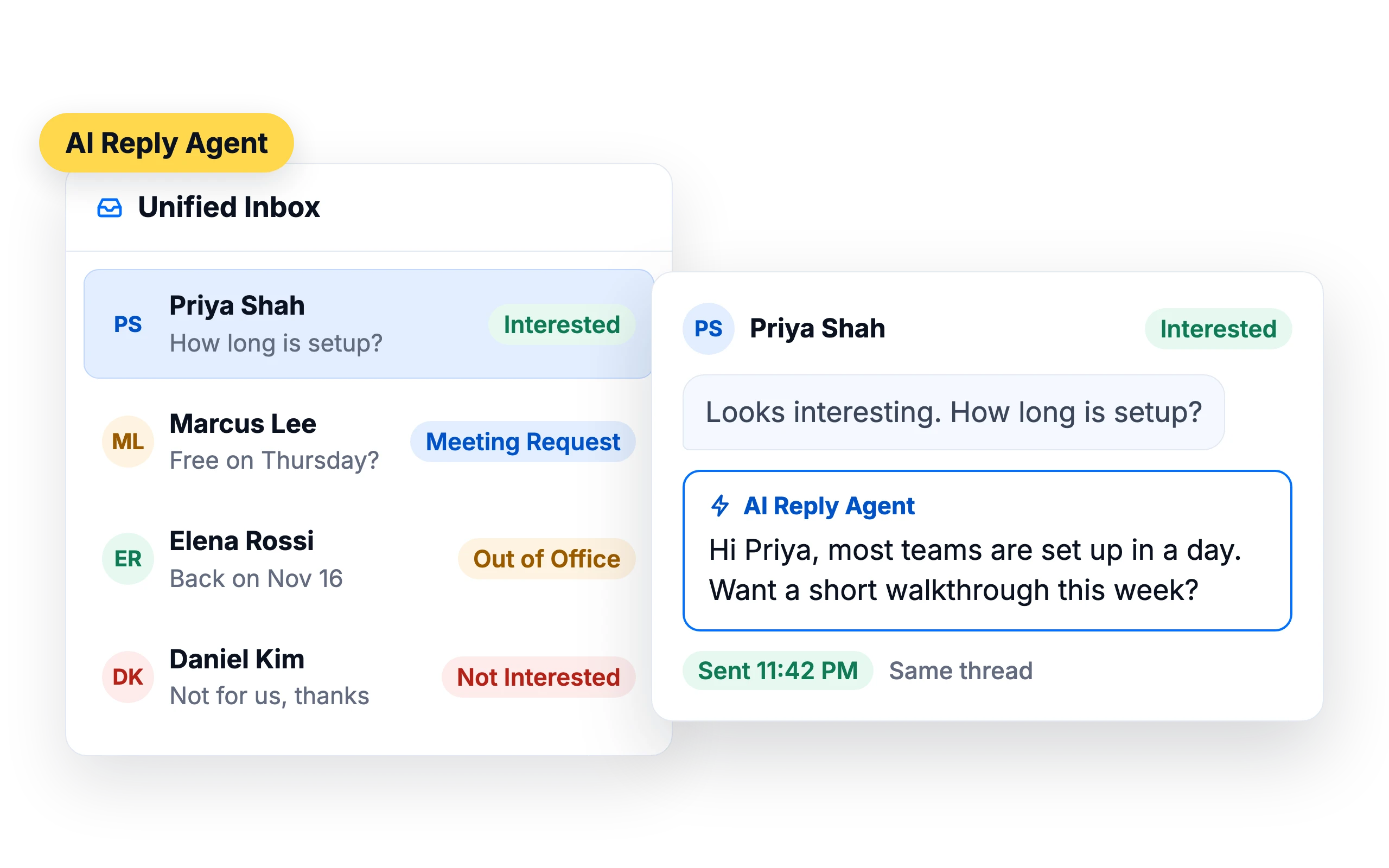
How it works
- 01
Add your Business Profile
Your offer, ideal customer, call to action, booking link and the rules the AI must follow.
- 02
Write instructions per reply type
Tell the agent how to answer Interested, Not Interested and Meeting Request replies.
- 03
Choose how it sends
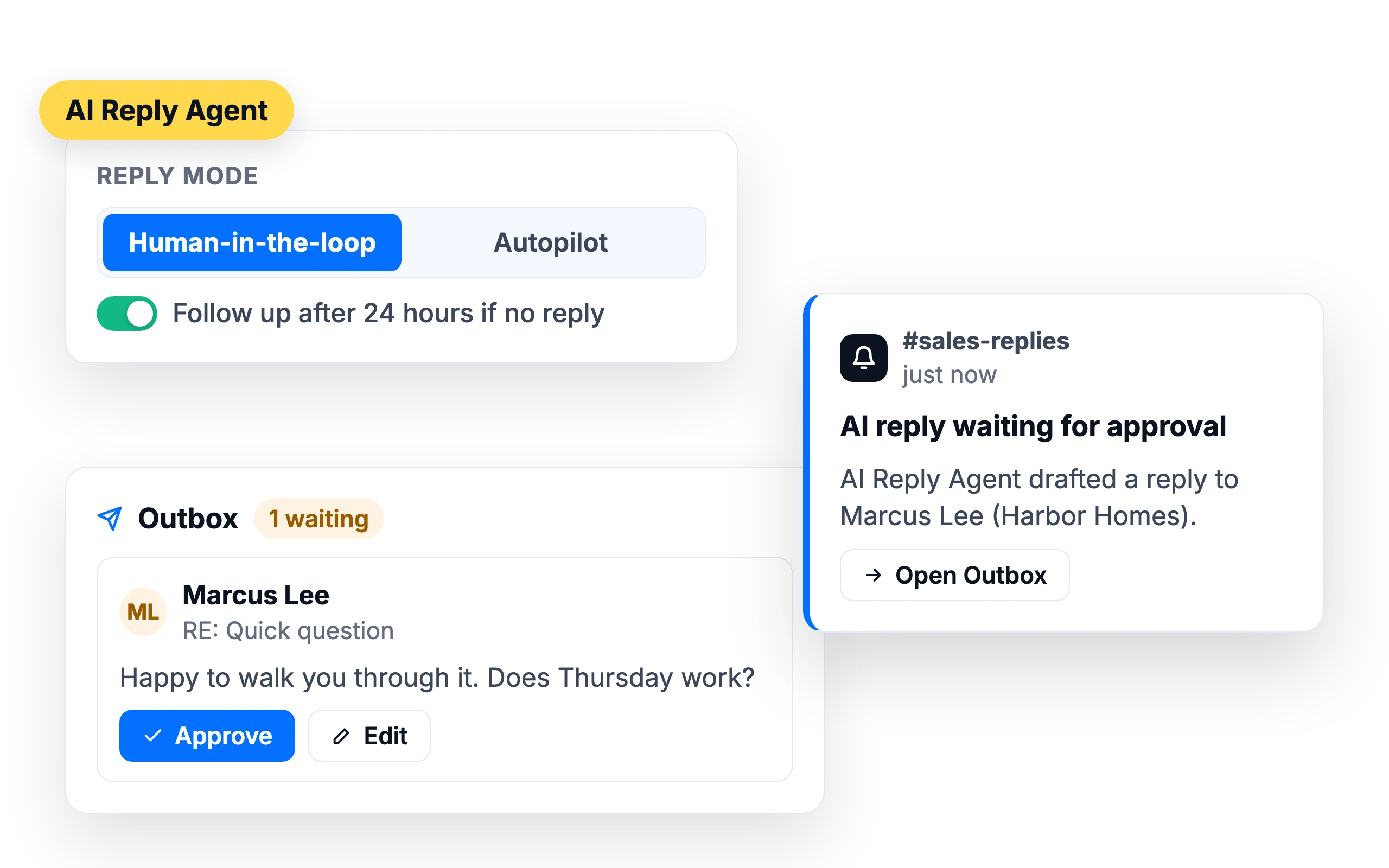
Human-in-the-loop holds each reply in the Outbox for approval. Autopilot sends after a short delay.
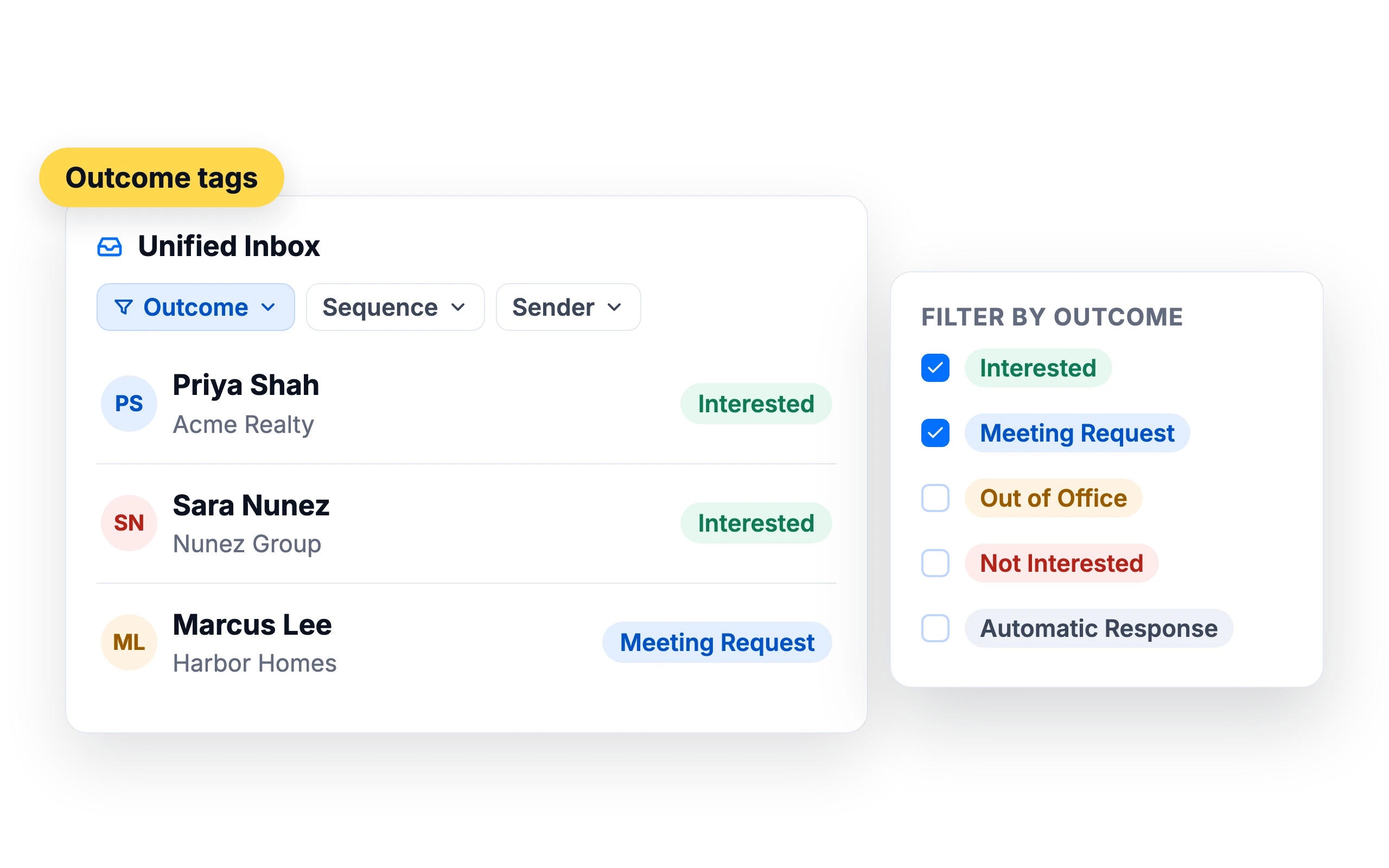
Every reply tagged by intent
The agent reads each reply and sets its Outcome in the Unified Inbox, so your team sees the interested leads first.
- Outcomes include Interested, Not Interested, Meeting Request, Out of Office and Automatic Response
- Filter the inbox by Outcome, sequence or sender
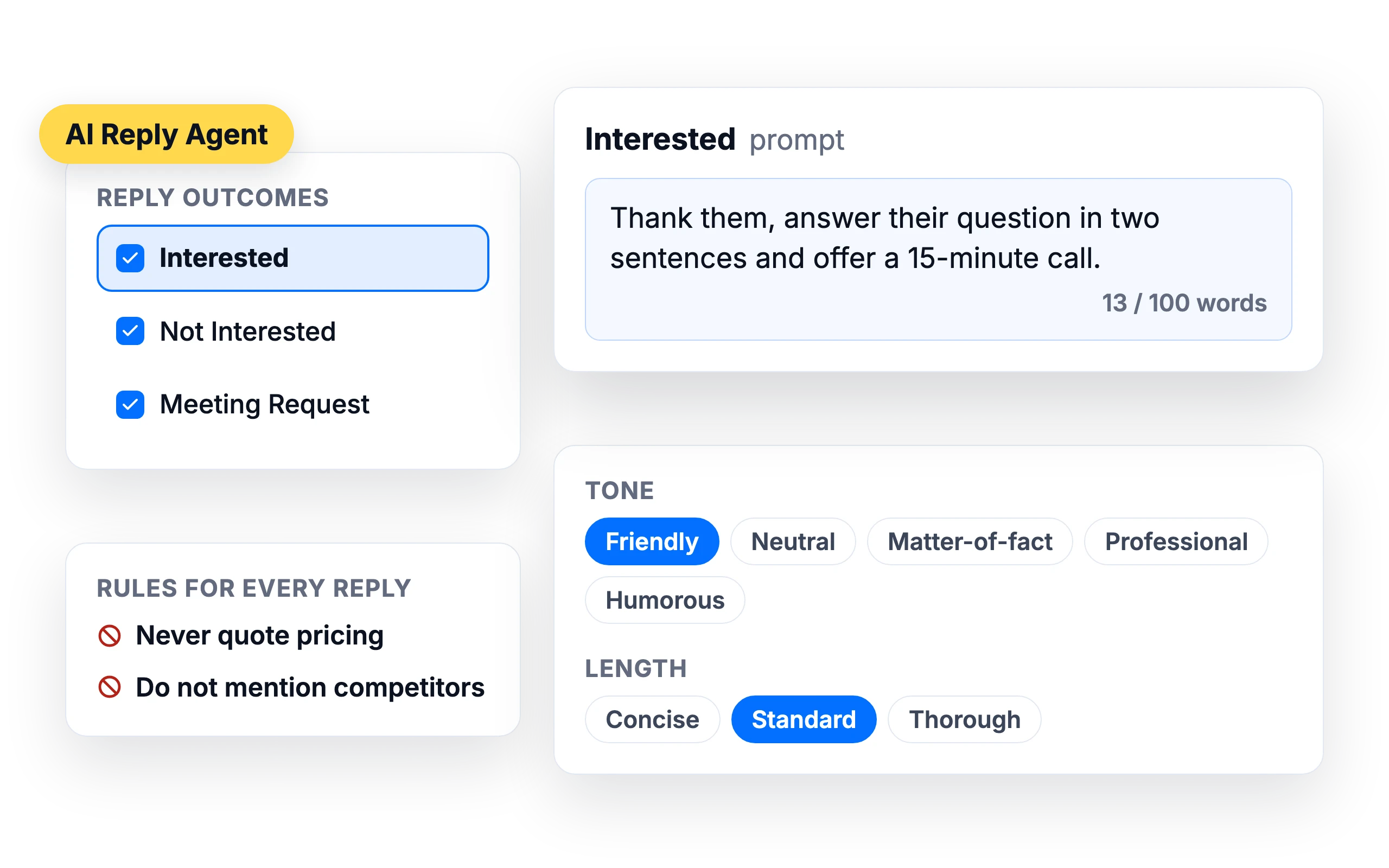
Answers that follow your instructions
Interested, Not Interested and Meeting Request replies each have their own prompt, up to 100 words. The agent writes with the full conversation in mind and replies in the same thread, including for Outlook senders.
- Tone: Friendly, Neutral, Matter-of-fact, Professional or Humorous
- Length: Concise, Standard or Thorough
- Rules such as “Never quote pricing” or “Do not mention competitors” apply to every reply
Your booking link, sent when a lead asks to meet
When a reply is tagged Meeting Request, the agent answers with your booking link. If you use the SalesBlink Meeting Scheduler, the link fills in from your connected calendar.
Meeting Scheduler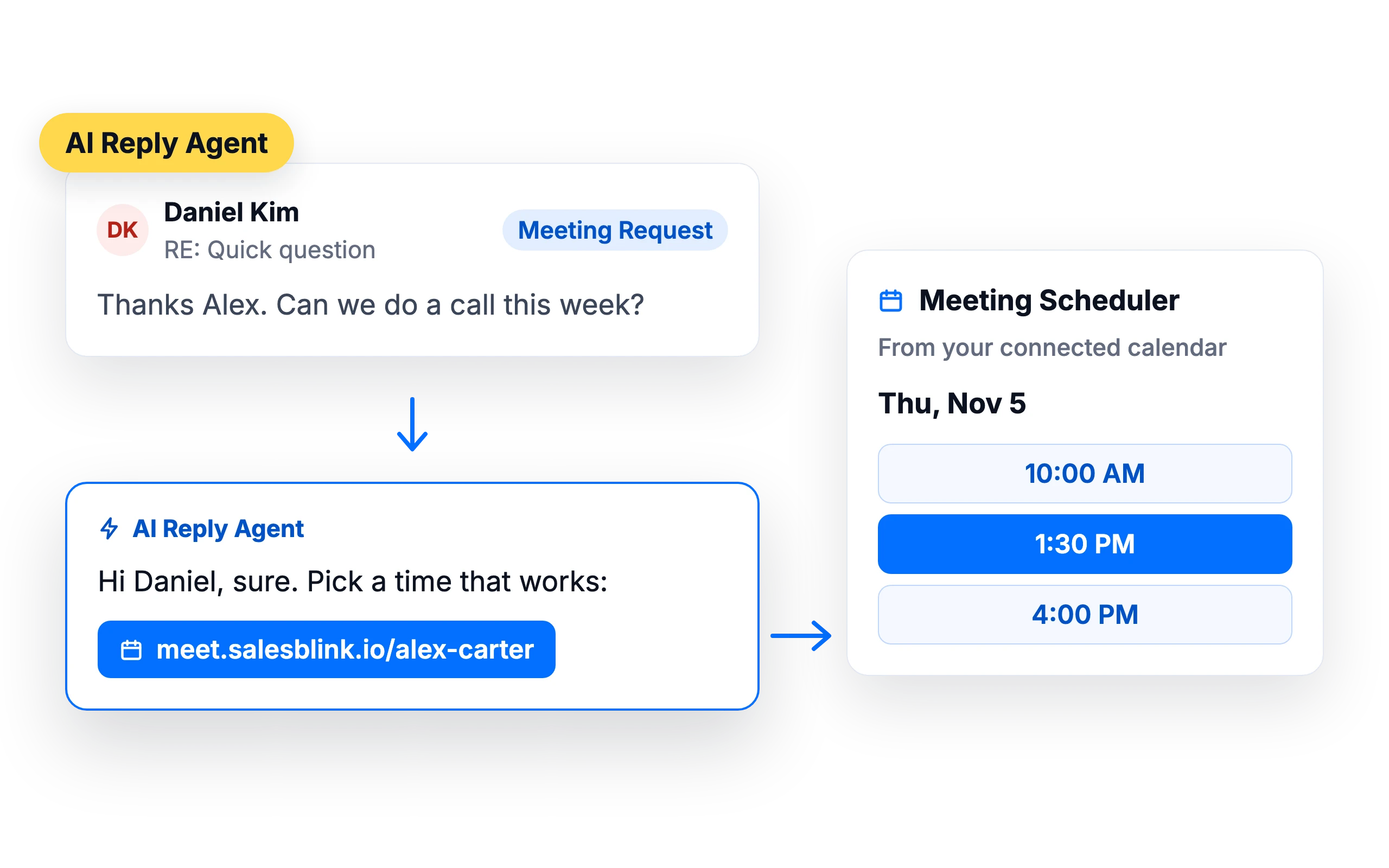
Out-of-office replies handled for you
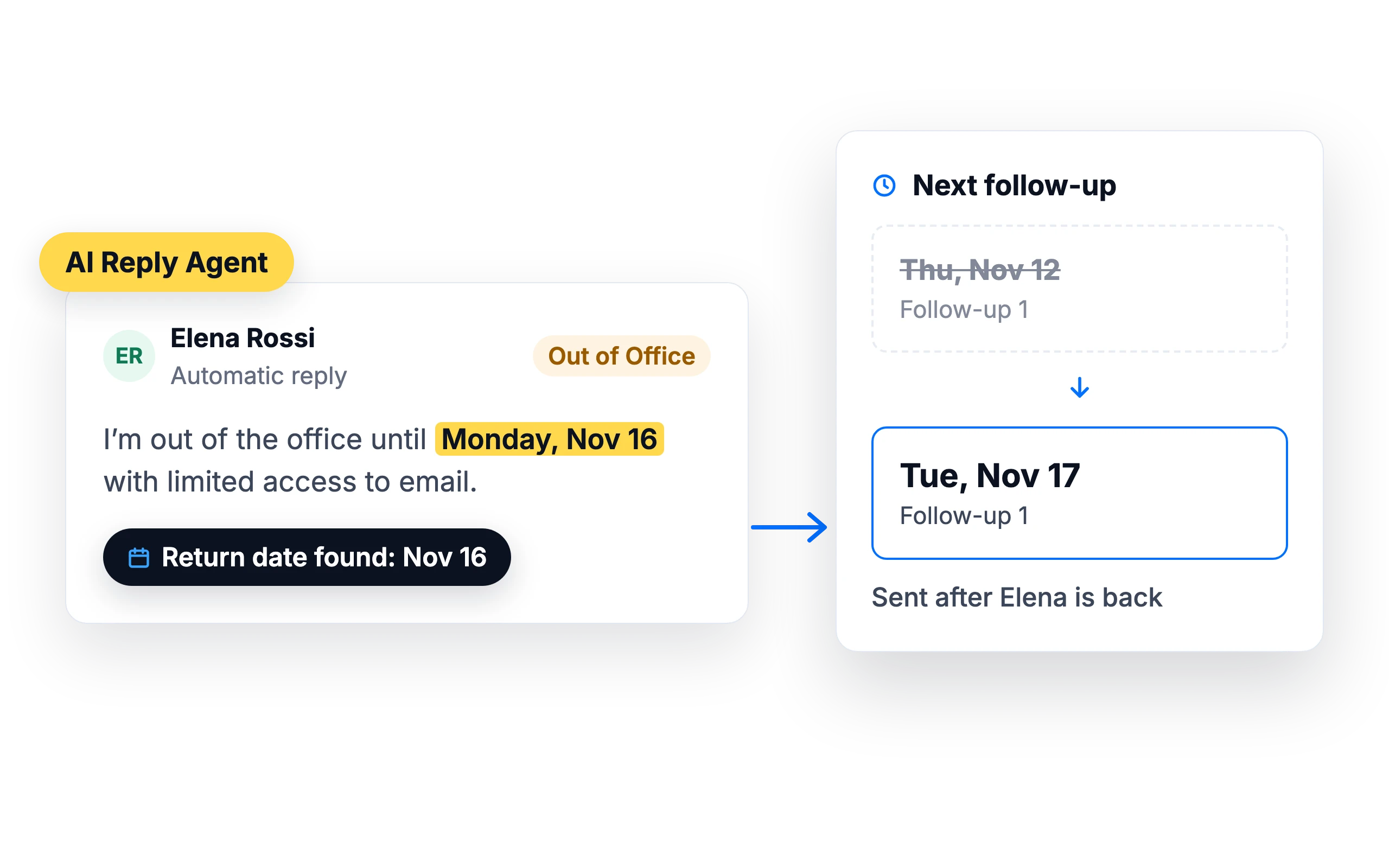
When a lead's auto-reply says they're away, SalesBlink finds the return date and moves the next follow-up to after they're back. If the date is unclear, AI works it out.
As much or as little control as you want
In human-in-the-loop mode, every reply waits in the Outbox until you approve it, and you can get a Slack alert when one is waiting. On Autopilot, replies send on their own. Either way, you can let the agent send one follow-up 24 hours later if the lead goes quiet; it's cancelled if the lead replies first.
Works with your agent





Your own AI agent can read and answer the same replies over MCP.
Connect your AI agentWhat customers say
4.7/5 on Capterra (286 reviews)4.5/5 on G2 (311 reviews)
4.0 on G2
“Best of all, the unified inbox brings replies from all secondary domains into a single feed, so hot leads get answered immediately without logging into separate accounts.”
Frequently asked questions
Can I approve replies before they send?
Yes. Choose human-in-the-loop mode and every AI reply waits in the Outbox for your approval.
Which replies does it answer?
It can answer Interested, Not Interested and Meeting Request replies. You choose which of these it handles, and it tags the other reply types without answering them.
How does it handle out-of-office replies?
It reads the return date in the auto-reply and moves the lead's next follow-up to after that date.
Does it reply in the lead's language?
This isn't guaranteed. For leads who write in other languages, use human-in-the-loop mode and check each reply before it sends.
Can I use it on some sequences only?
Yes. You turn on Auto-Tag and AutoReply in each sequence's settings, so it runs only where you enable it.
Can I use my own AI model?
Yes. Add your own OpenRouter API key in AI Settings and choose a preferred model.
How fast does the AI Reply Agent send a reply on Autopilot?
Roughly 90 seconds. On Autopilot, each reply task is created already approved and sends after that short delay. In human-in-the-loop mode, nothing sends until you open the Outbox and approve the draft. You can switch between the two modes at any time in Account → AI Settings → AI Reply Agent.
How do I turn off the AI Reply Agent?
Go to Account → AI Settings, find the AI Reply Agent row and switch it off. To stop it on one campaign only, open that sequence's settings and turn off AutoReply to Leads with AI Reply Agent in the AI & More tab. Auto-Tag Incoming Replies can stay on, so replies keep getting their Outcome tags.
What do I need to set up before turning it on?
Save your Business Profile, select at least one reply Outcome in the AI Reply Agent settings, and turn on Track Email Replies, Auto-Tag Incoming Replies and AutoReply to Leads with AI Reply Agent in the sequence. You also need AI credits or your own OpenRouter API key.
How long can the Business Profile be?
Up to 150 words in total. A counter at the top of the About your Business / Project card shows your count, and Save Business Profile stays disabled until you're under the limit. Click Preview Compiled Prompt to see the exact text the AI receives. If you add your own OpenRouter API key, there is no word limit.