 New: SalesBlink is now in ChatGPT
Run cold email outreach with Meta Muse
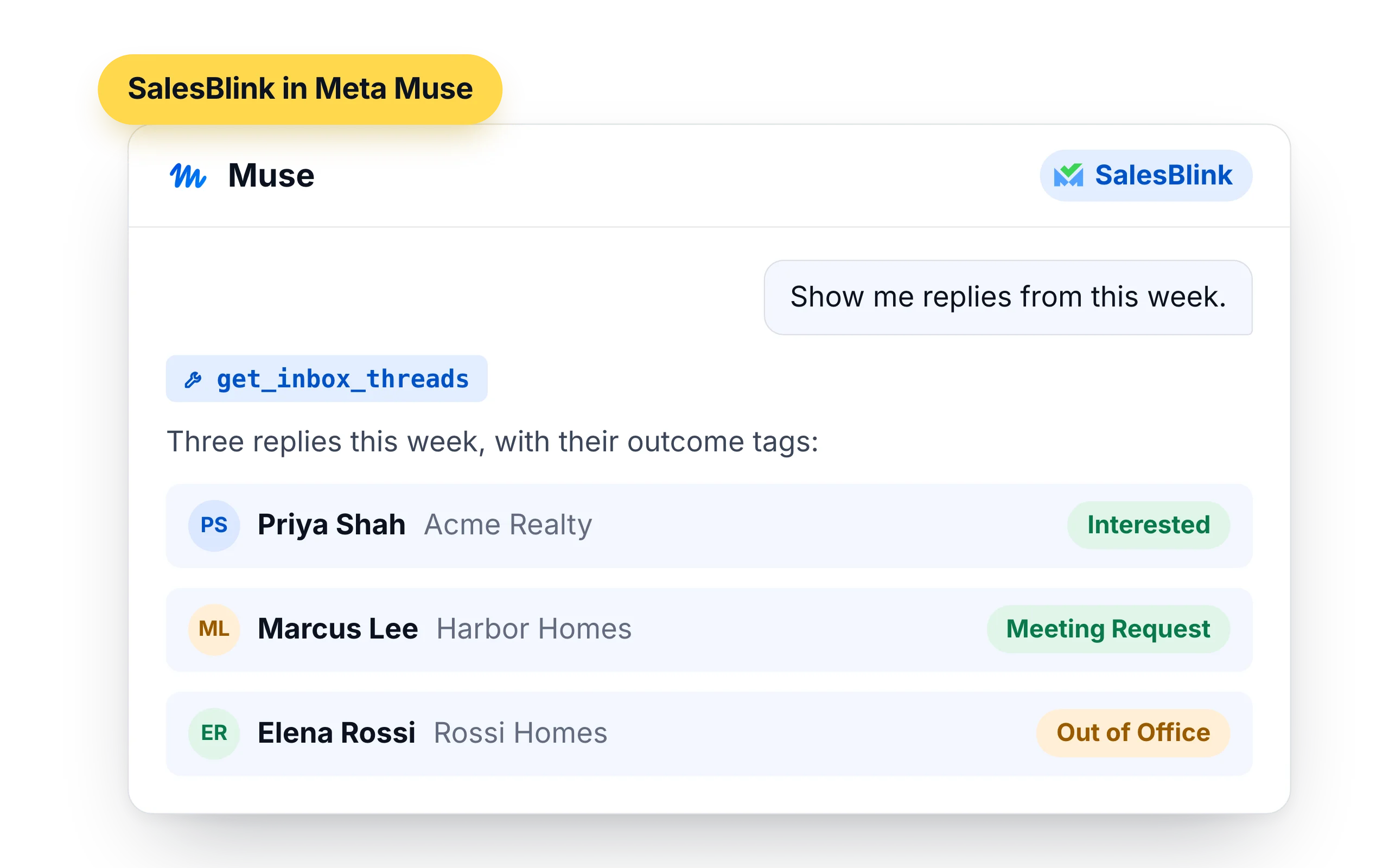
Muse is Meta's personal AI agent. Ask it to build a custom connector for SalesBlink and it can manage your lists and sequences and tell you who replied.
14-day free trial. No credit card required.
Trusted by 12,000+ businesses


How it works
Ask Muse for a custom connector
Tell Muse to build a custom connector for SalesBlink from the SalesBlink API.
Add your API key
Create a key in Account → Integrations → API and enter it in Muse's secure credentials prompt.
Save it as a skill
Ask Muse to test the connector and save it as a skill, so it can use SalesBlink in later chats.
Hand Muse the weekly outreach routine
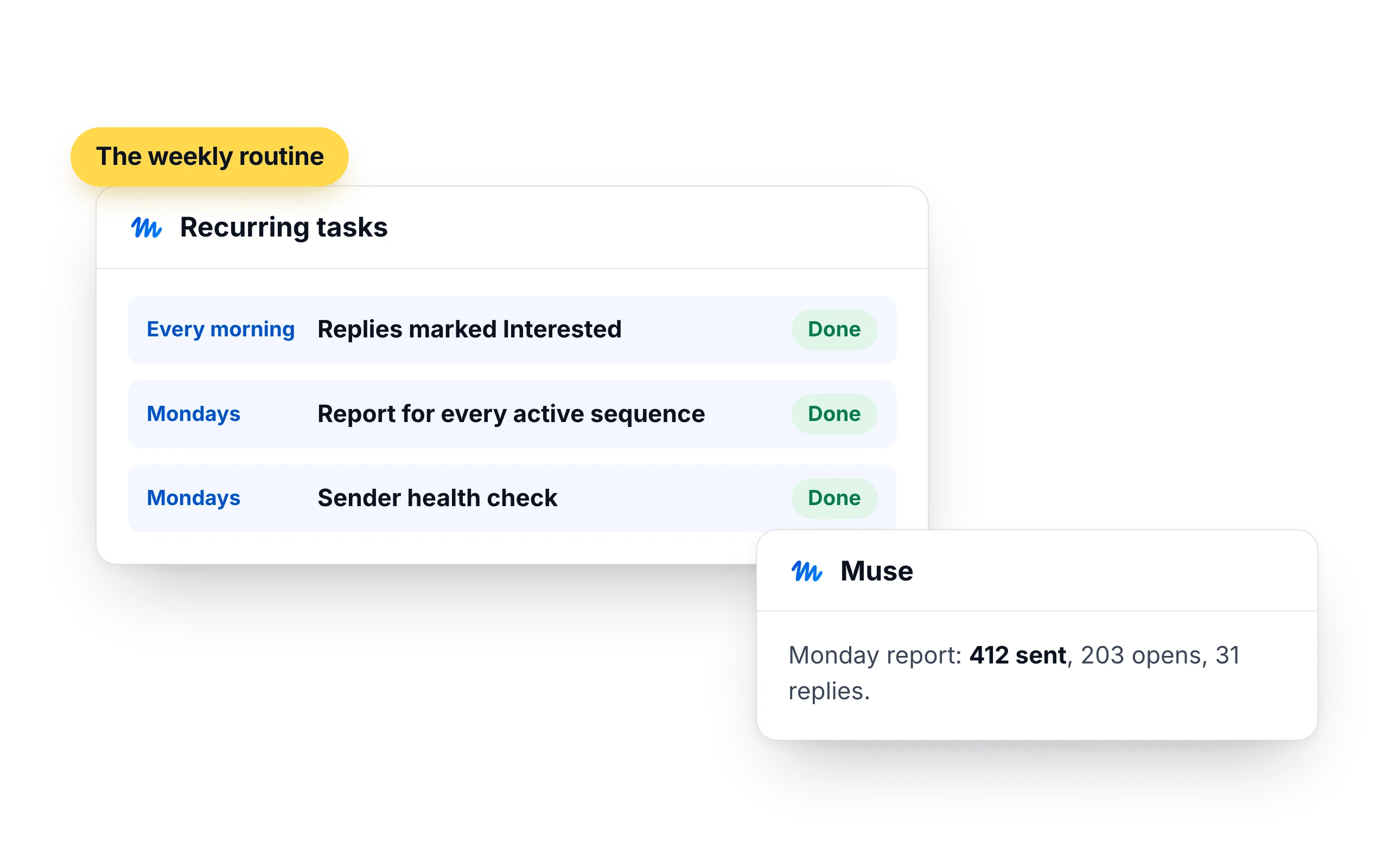
Muse can run recurring tasks. Give it the checks you do every week and it reports back, so you only step in for the conversations and the launches.
- "Every morning, list new SalesBlink replies marked Interested."
- "Each Monday, report sends, opens and replies for every active sequence."
- "Check sender health before the week starts."
From a list of contacts to a ready sequence
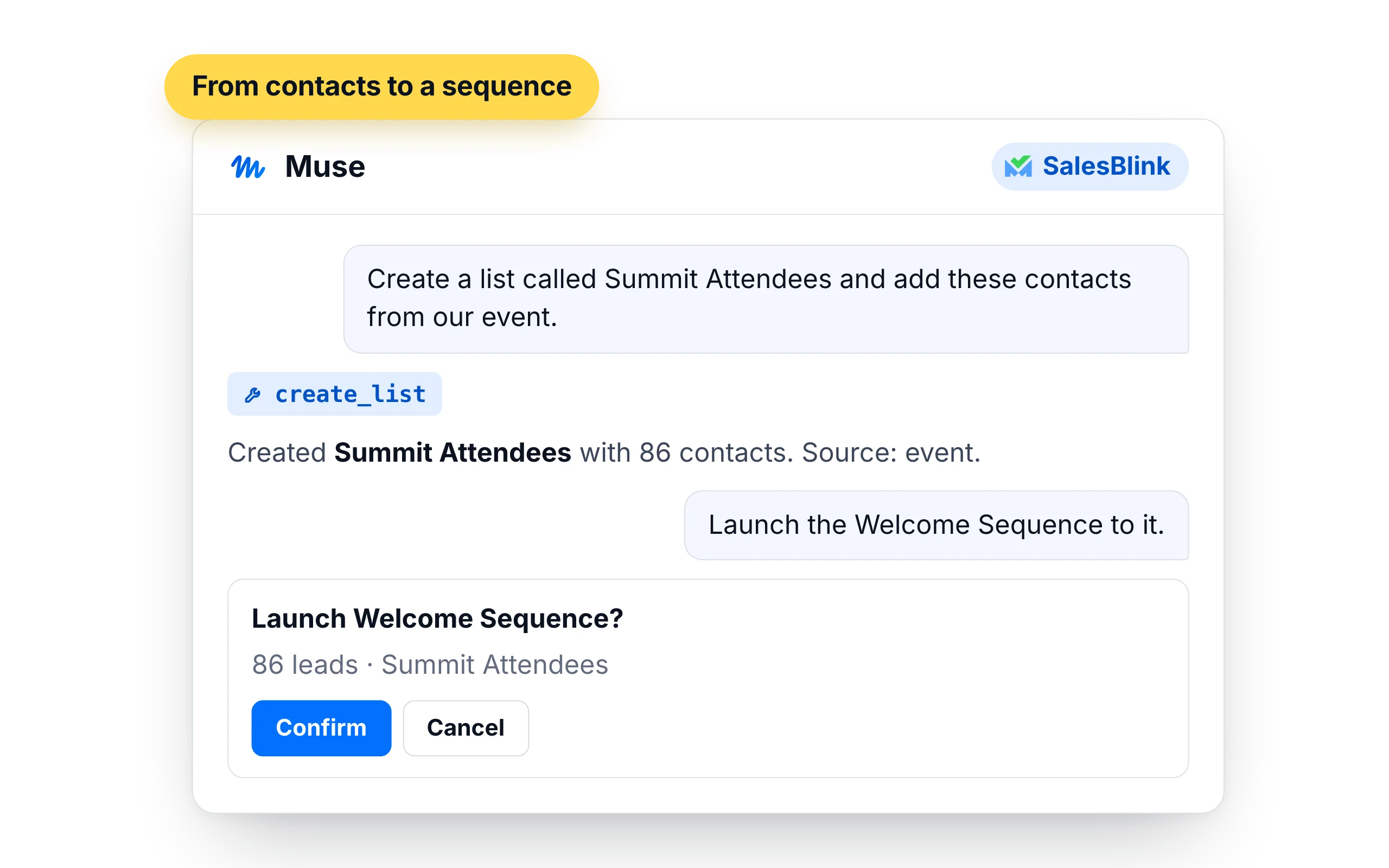
Give Muse the contacts and where they came from. It creates the list in SalesBlink, adds them and prepares the sequence. With approval turned on in Muse, you confirm before anything is launched.
- "Create a list called Summit Attendees and add these contacts from our event."
- "Clone the Welcome Sequence for that list."
- "Launch it." (With approval turned on, Muse asks first.)
Who should run outreach with Meta Muse
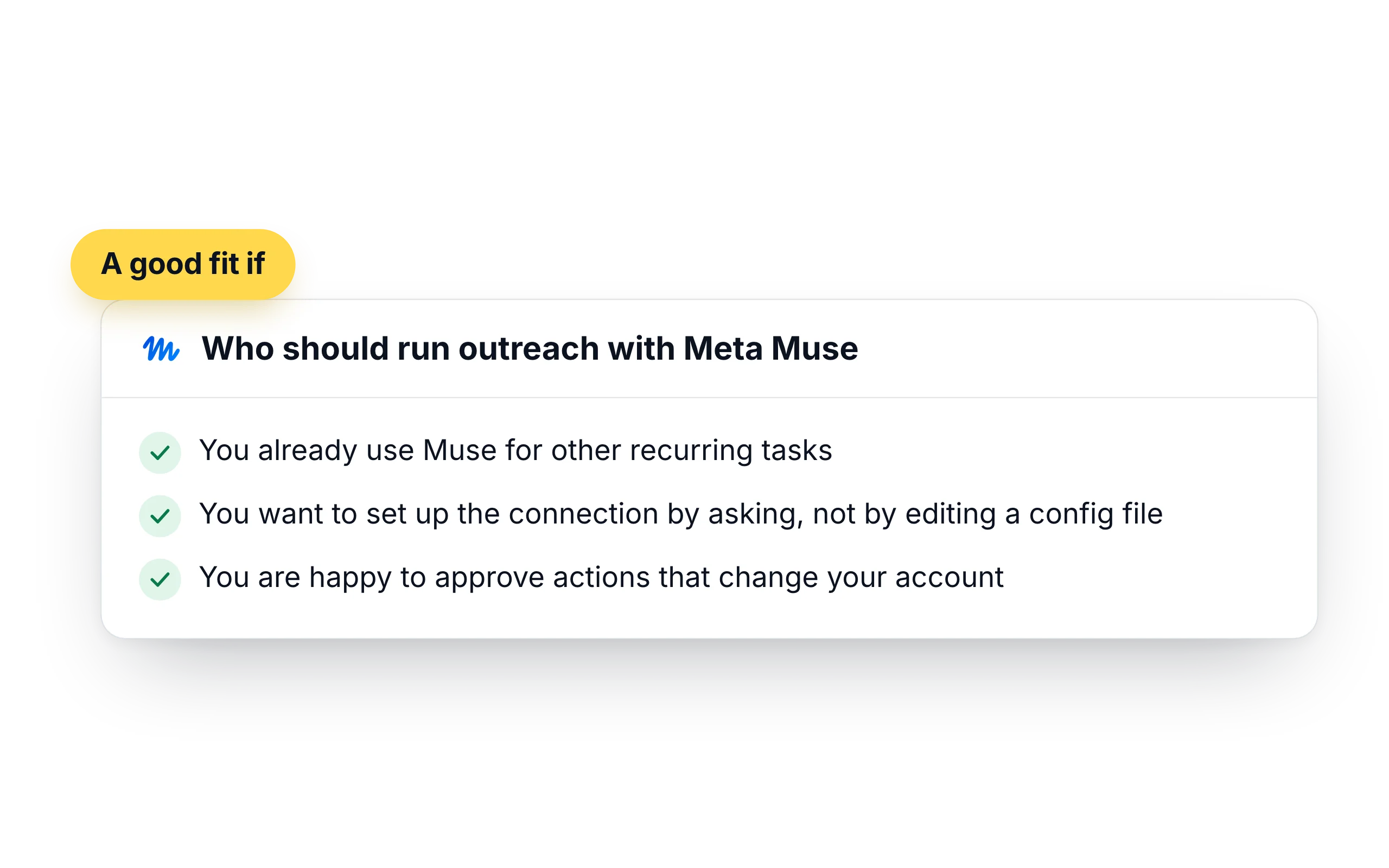
Muse fits people who want a personal agent to take over routine work without setting up a server. You describe the job in the chat, and Muse keeps the connector as a skill for next time.
- You already use Muse for other recurring tasks
- You want to set up the connection by asking, not by editing a config file
- You are happy to approve actions that change your account
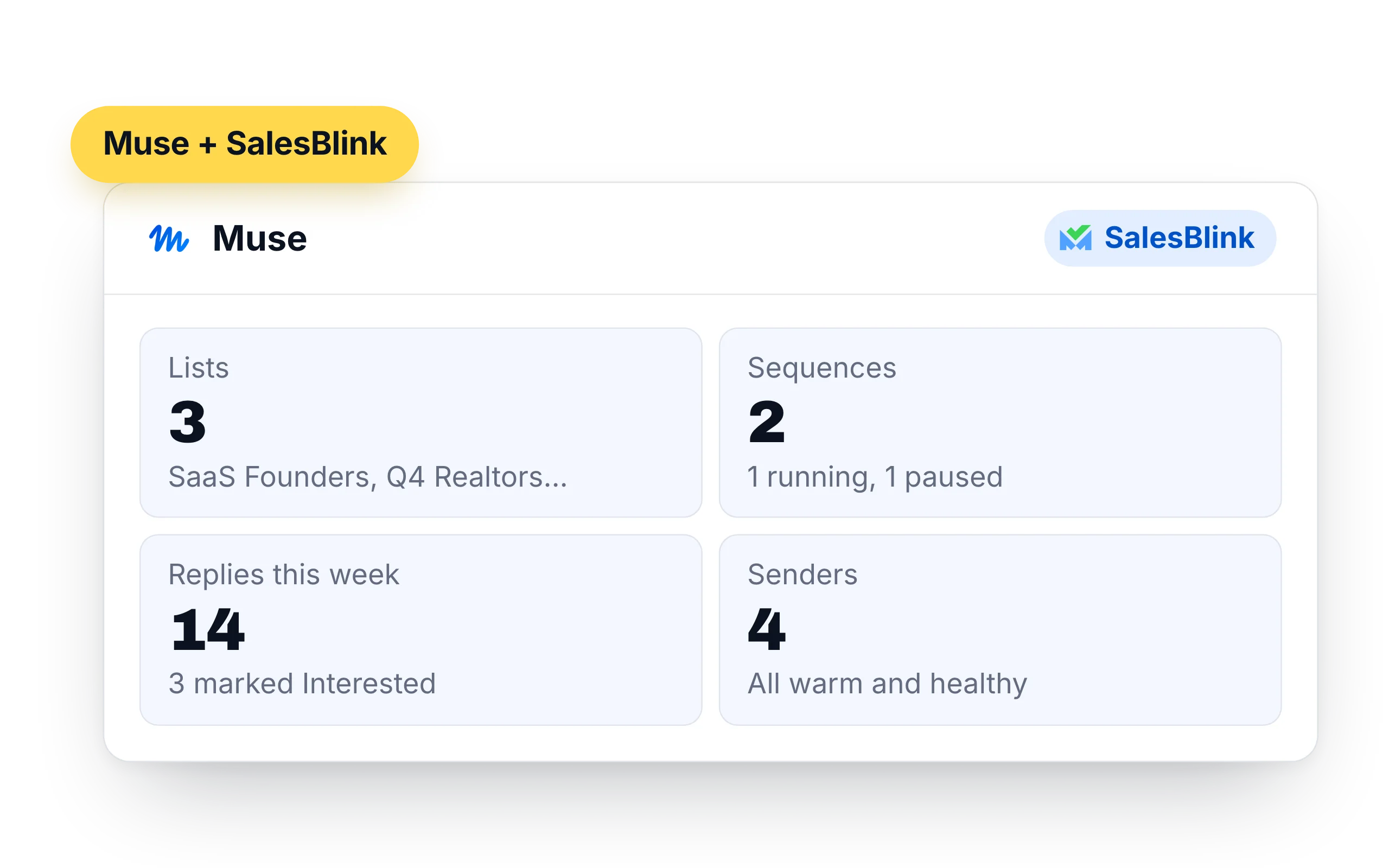
What Meta Muse can do in your SalesBlink account
Muse builds its own connector from the SalesBlink API and keeps it as a skill. After that it can use your account in any chat, with the key held in its credentials store.
- Lists and leads: create lists, add up to 500 contacts at a time, look up leads and move them between lists
- Sequences: create, clone, launch and pause cold email sequences, and pull their stats
- Replies: read reply threads from the Unified Inbox, answer them and forward messages
- Senders: check sender health and warmup stats, and run an inbox placement test
- Templates and workspaces: create email templates and switch between client workspaces
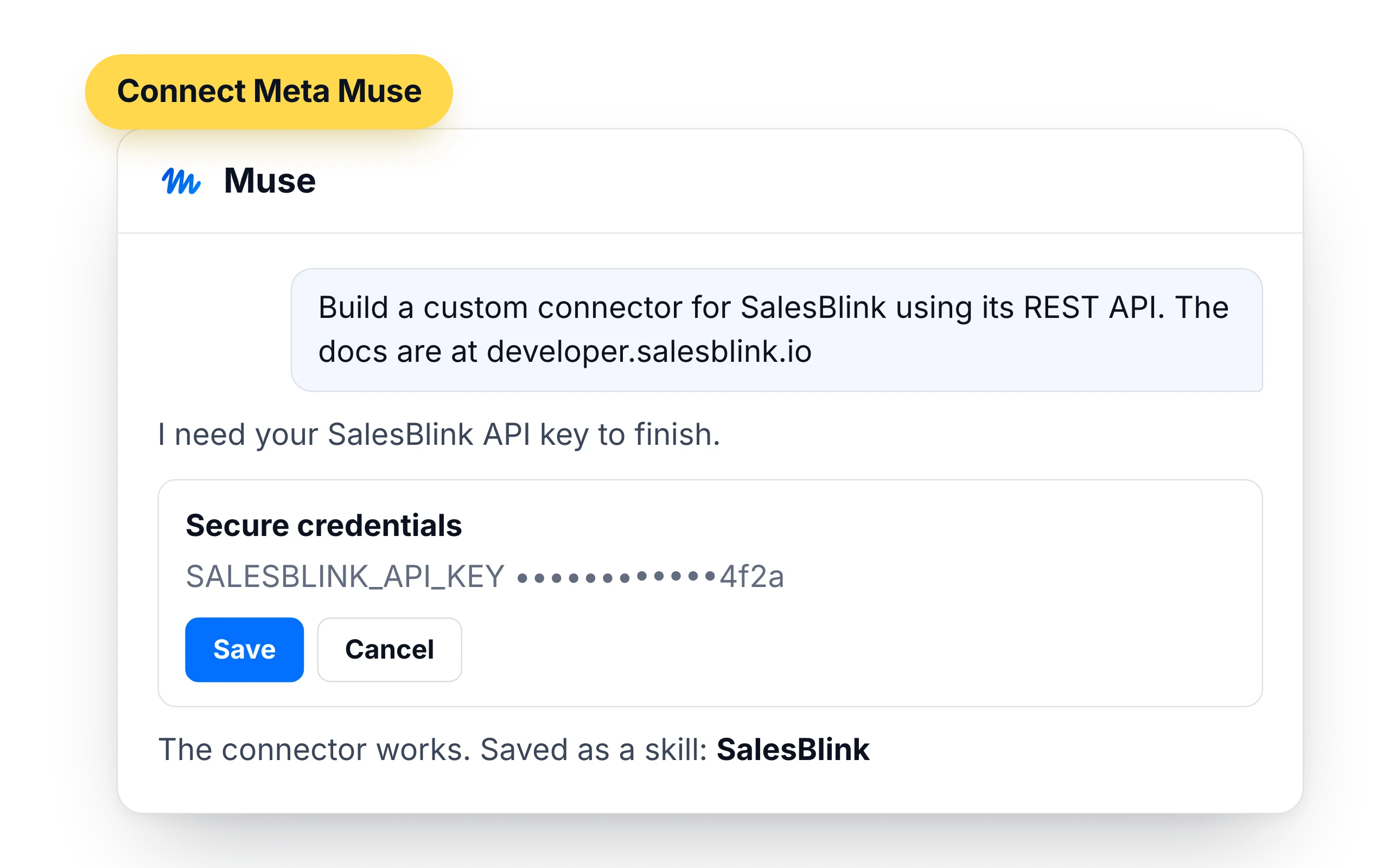
How to connect Meta Muse to SalesBlink
SalesBlink is not in the Muse connector list, so you ask Muse to build a custom connector. Muse writes it from the SalesBlink API documentation and keeps your key in its credentials store.
- Tell Muse: "Build a custom connector for SalesBlink using its REST API. The documentation is at https://developer.salesblink.io and it uses an API key."
- Create an API key in Account → Integrations → API. Enter it in the secure credentials prompt Muse shows, not in the chat
- Ask Muse to test the connector by listing your SalesBlink lists, then to save it as a skill
- Open Settings → Connectors and choose how much Muse may do with SalesBlink without asking
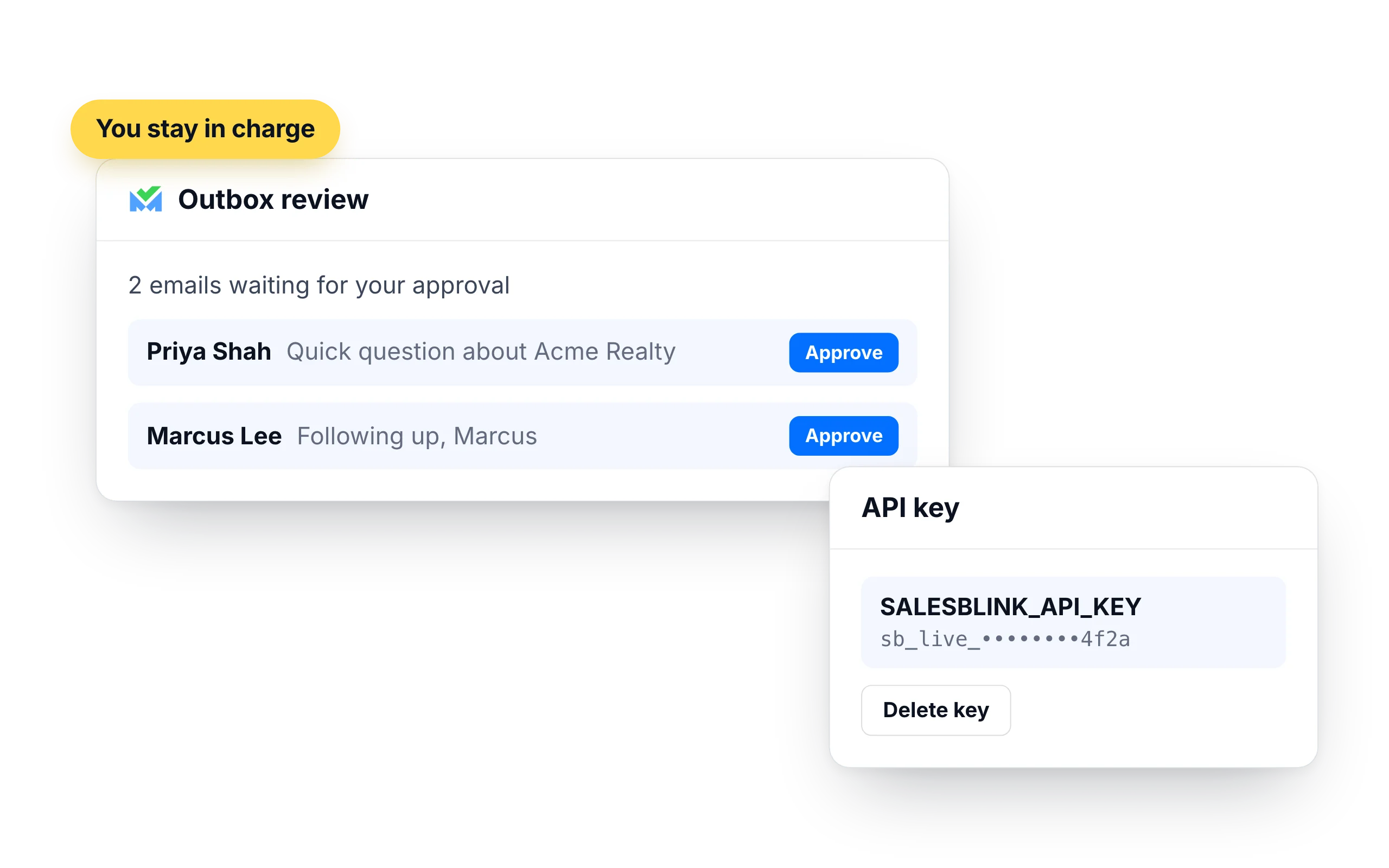
You stay in charge of what gets sent
Muse uses an API key, so SalesBlink doesn't ask for a second confirmation. Use Muse's own approval setting and SalesBlink's Outbox review together.
- Turn on Outbox review in a sequence's settings and every email waits for your approval
- Emails go out from your own SalesBlink senders, inside their daily limits and sending schedule
- Delete the API key in Account → Integrations → API to cut off Meta Muse's access
- Meta doesn't review custom connectors. In Settings → Connectors, require approval for actions that change your account
What customers say
4.7/5 on Capterra (286 reviews)4.5/5 on G2 (311 reviews)
5.0 on Capterra
“I like how SalesBlink connects with AI and my own code, making the email outreach process faster and easier. This integration allows me to build sequences quickly and carry out email outreach with automatic follow-ups.”













Frequently Asked Questions
What is Meta Muse?
Muse is Meta's personal AI agent. It runs in Meta's cloud, can carry out recurring tasks and can reach outside services through connectors, including custom ones that you ask it to build.
How do I connect Meta Muse to SalesBlink?
Ask Muse to build a custom connector for SalesBlink from the API documentation at https://developer.salesblink.io. Give it an API key from Account → Integrations → API through its secure credentials prompt, then ask it to save the connector as a skill.
Can Muse use the SalesBlink MCP server instead?
The SalesBlink MCP server only accepts a browser sign-in, which is harder to complete from a connector that Muse builds itself. The API-key connector is the route we recommend for Muse.
Do I give Muse my SalesBlink password?
No. Muse uses an API key that you create in SalesBlink and enter in its secure credentials prompt. Delete the key in SalesBlink to end its access.
Why does Muse ask me to set it up again?
A connector that was not saved may be rebuilt in a new chat. Ask Muse to save the SalesBlink connector as a skill, then run a check from the saved skill.
Do I need a SalesBlink account?
Yes. Meta Muse connects to your SalesBlink account with an API key from Account → Integrations → API. You can start with the 14-day free trial.
Can Meta Muse send emails without asking me?
Meta Muse can launch a sequence when you ask it to. Turn on Outbox review in a sequence's settings and every email waits for your approval before it sends.