 New: SalesBlink is now in ChatGPT
Put a Grok Bot on your cold email outreach
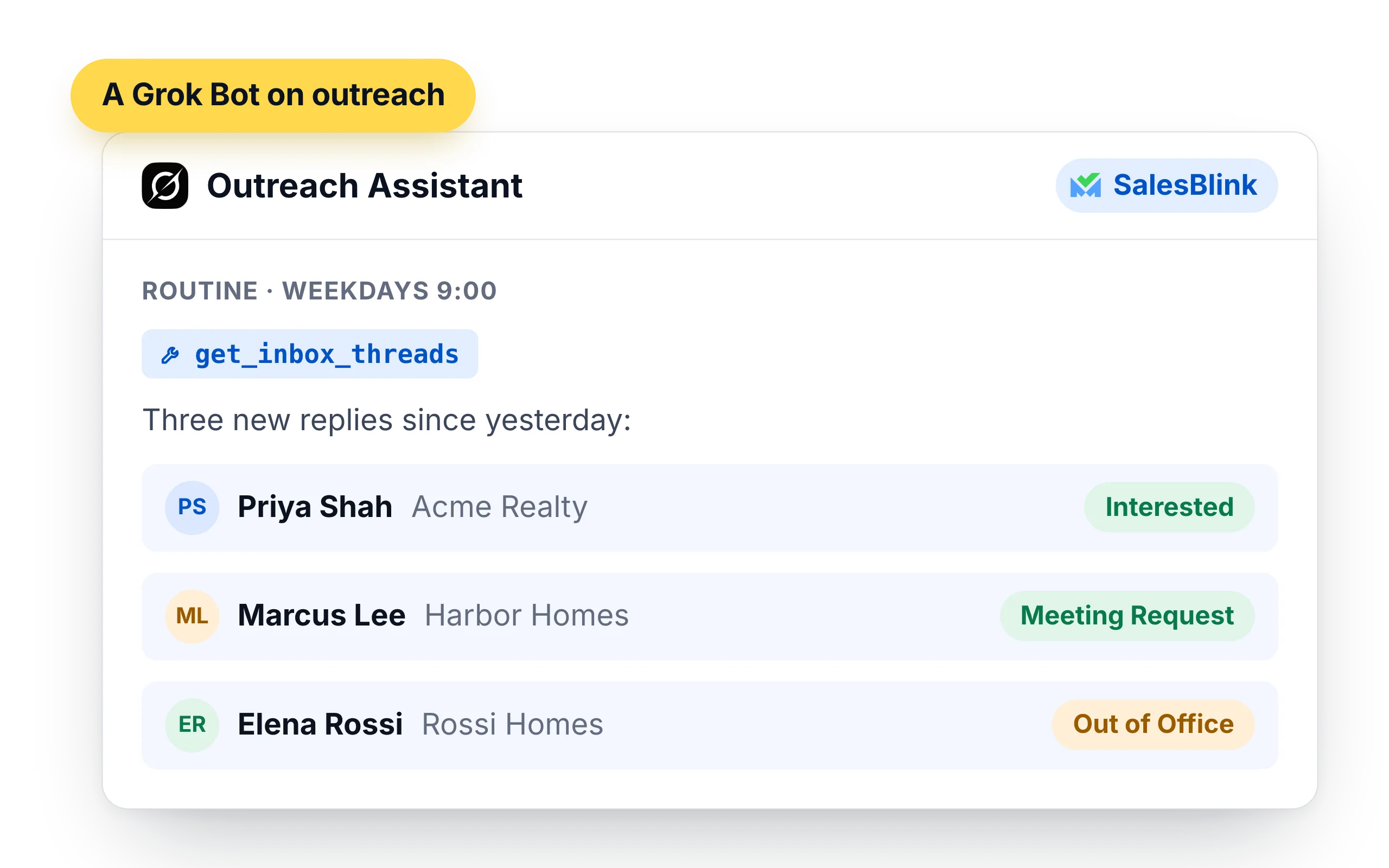
Grok Bot is an agent from xAI with its own cloud computer. Add SalesBlink as a custom connector and a bot can manage your lists and sequences and report on replies on the routine you set.
14-day free trial. No credit card required.
Trusted by 12,000+ businesses


How it works
Add a custom connector
In Grok Bot, open Connect apps and choose Add a custom connector.
Paste the URL and authorize
Pick Remote HTTPS, paste the SalesBlink MCP URL, save it and sign in to SalesBlink. You don't need an API key.
Give it the outreach job
Type @ to attach SalesBlink to a task, or set a routine such as a weekday reply summary.
A bot whose job is your outreach
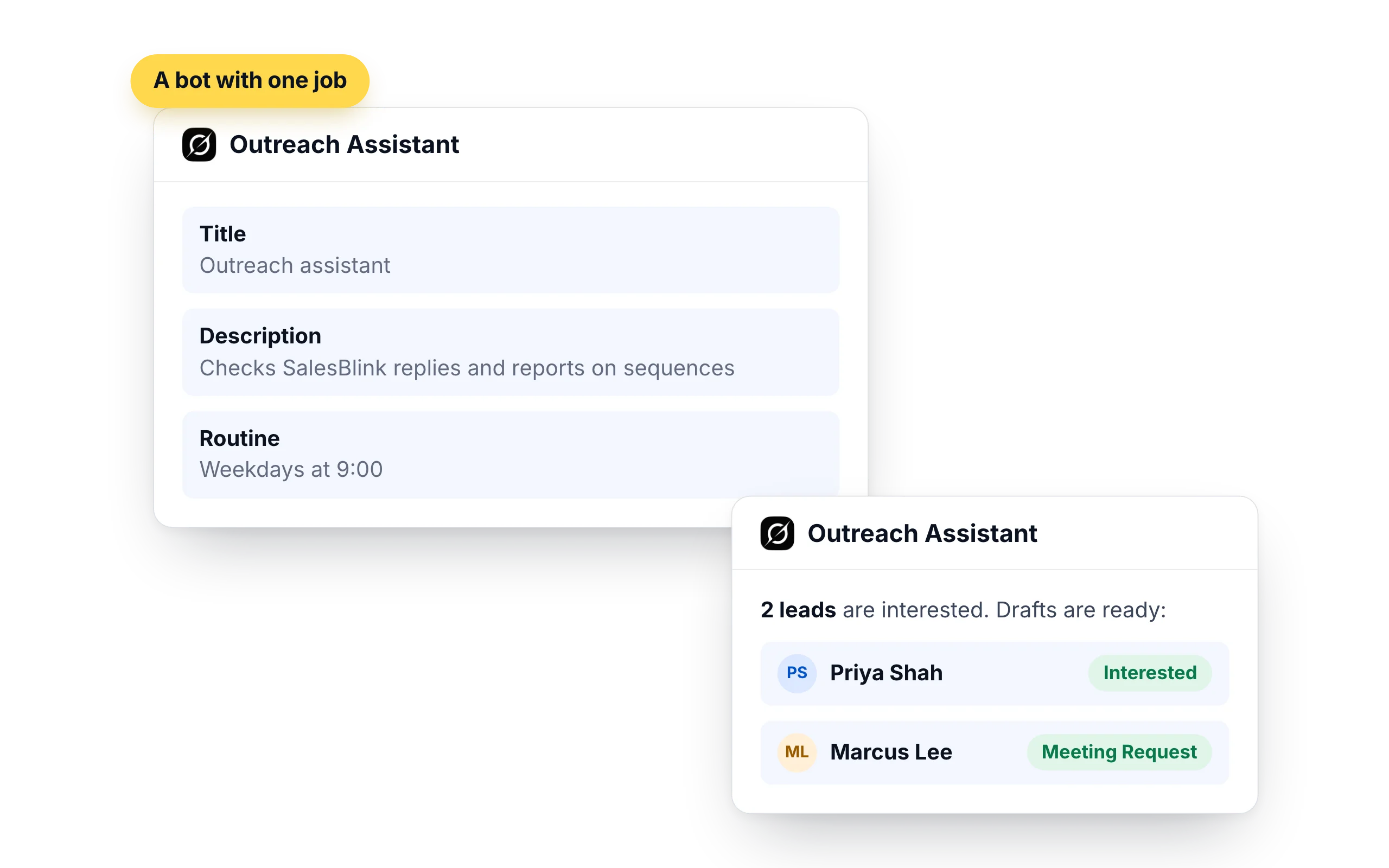
Each bot has a name, a title and a description. Make one your outreach assistant, give it SalesBlink, and it can follow a weekday routine without you opening the app.
- "Every weekday morning, list new replies marked Interested and draft an answer for each."
- "Every Friday, report sends, opens and replies for each active sequence."
- "Tell me when a sequence finishes."
Pass work between bots
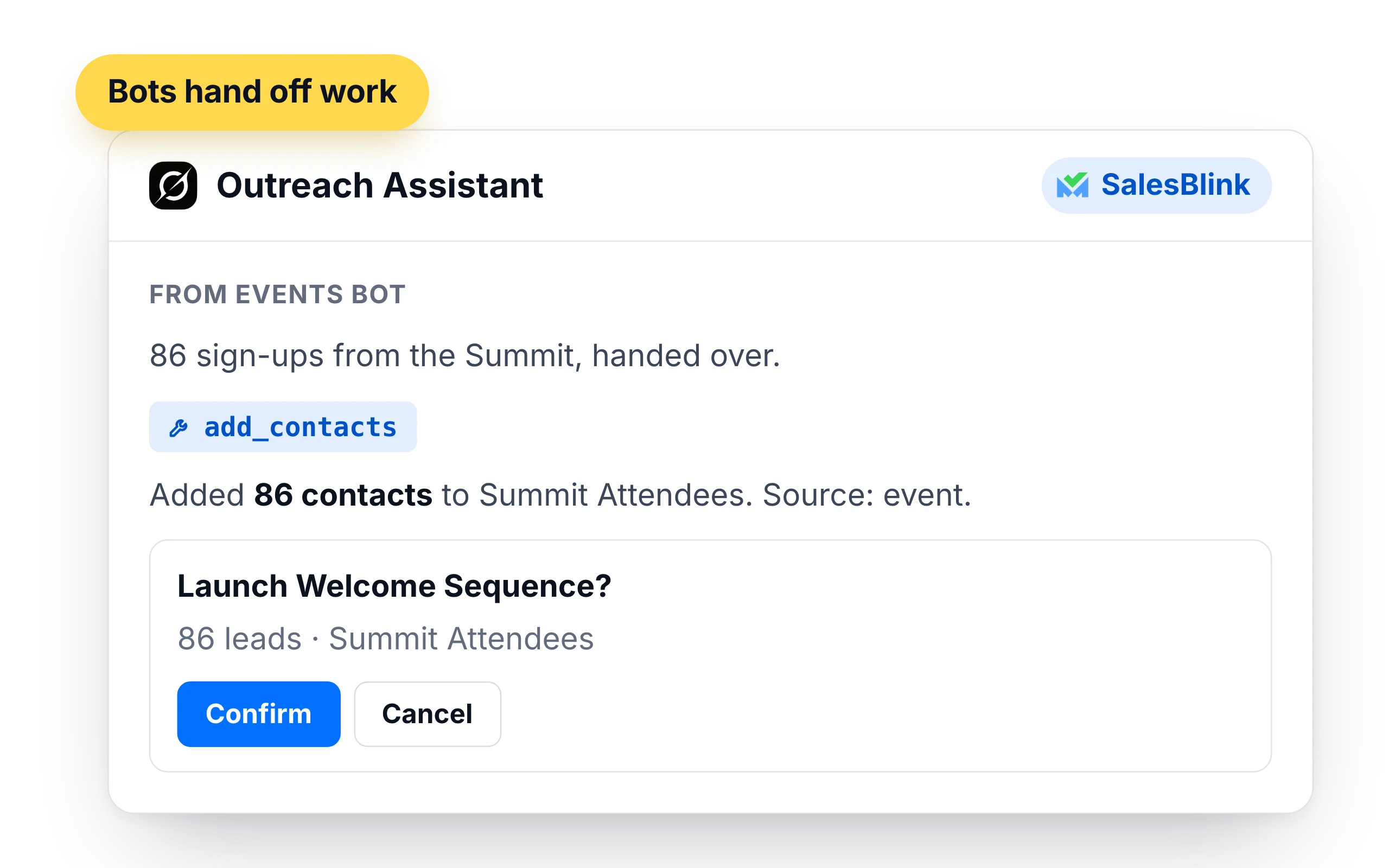
Bots can hand tasks to each other. One that collects the sign-ups from your event tool can pass them to the outreach bot, which adds them to a SalesBlink list with the source and gets a sequence ready for you to confirm.
- Contacts are added with a stated source, up to 500 at a time
- The sequence is prepared for you
- The launch waits for your confirmation
What to give a Grok Bot, and what to keep
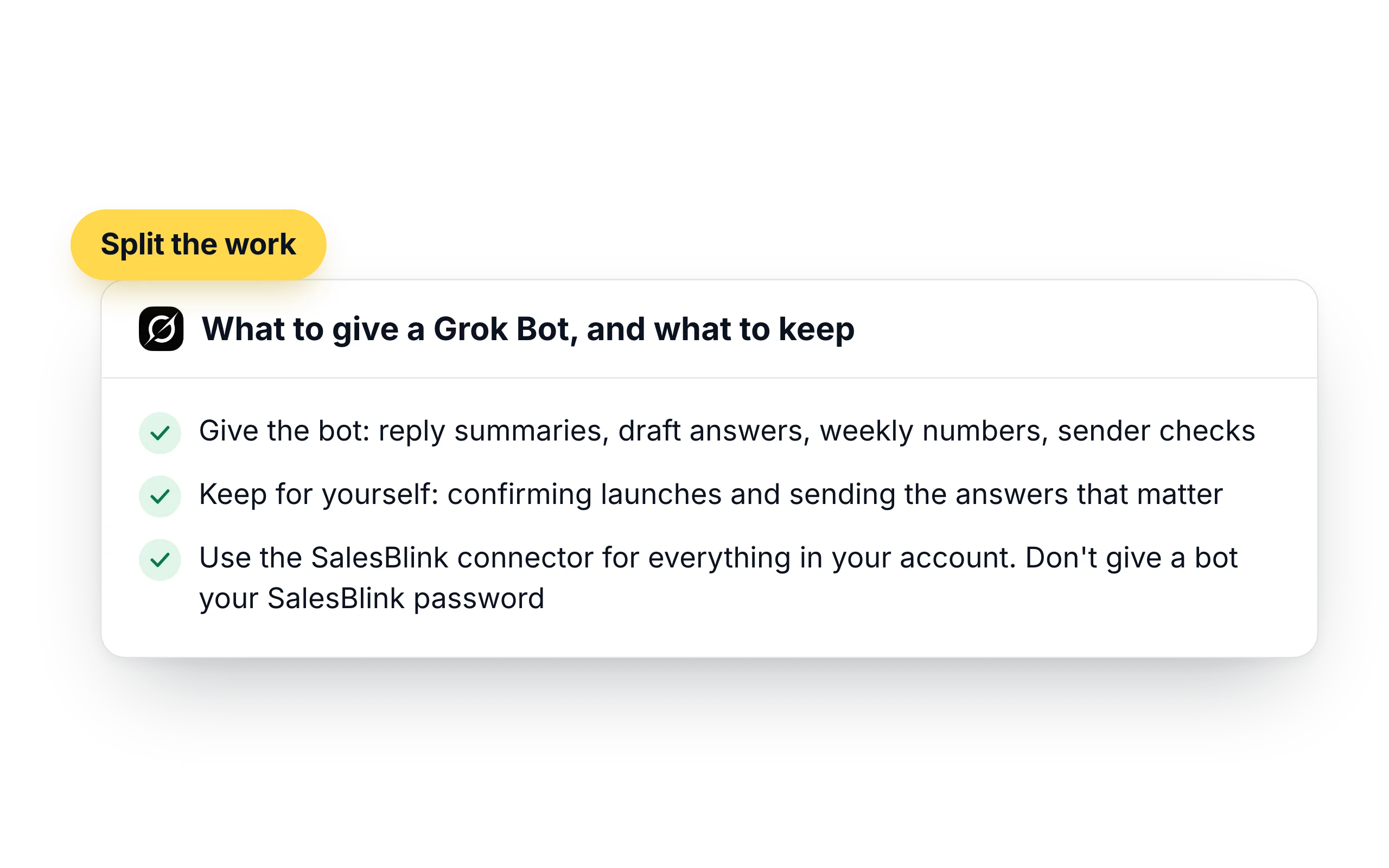
A Grok Bot is suited to the outreach chores that follow a timetable. It has its own computer and keeps going when your laptop is closed, so the morning report is there before you are.
- Give the bot: reply summaries, draft answers, weekly numbers, sender checks
- Keep for yourself: confirming launches and sending the answers that matter
- Use the SalesBlink connector for everything in your account. Don't give a bot your SalesBlink password
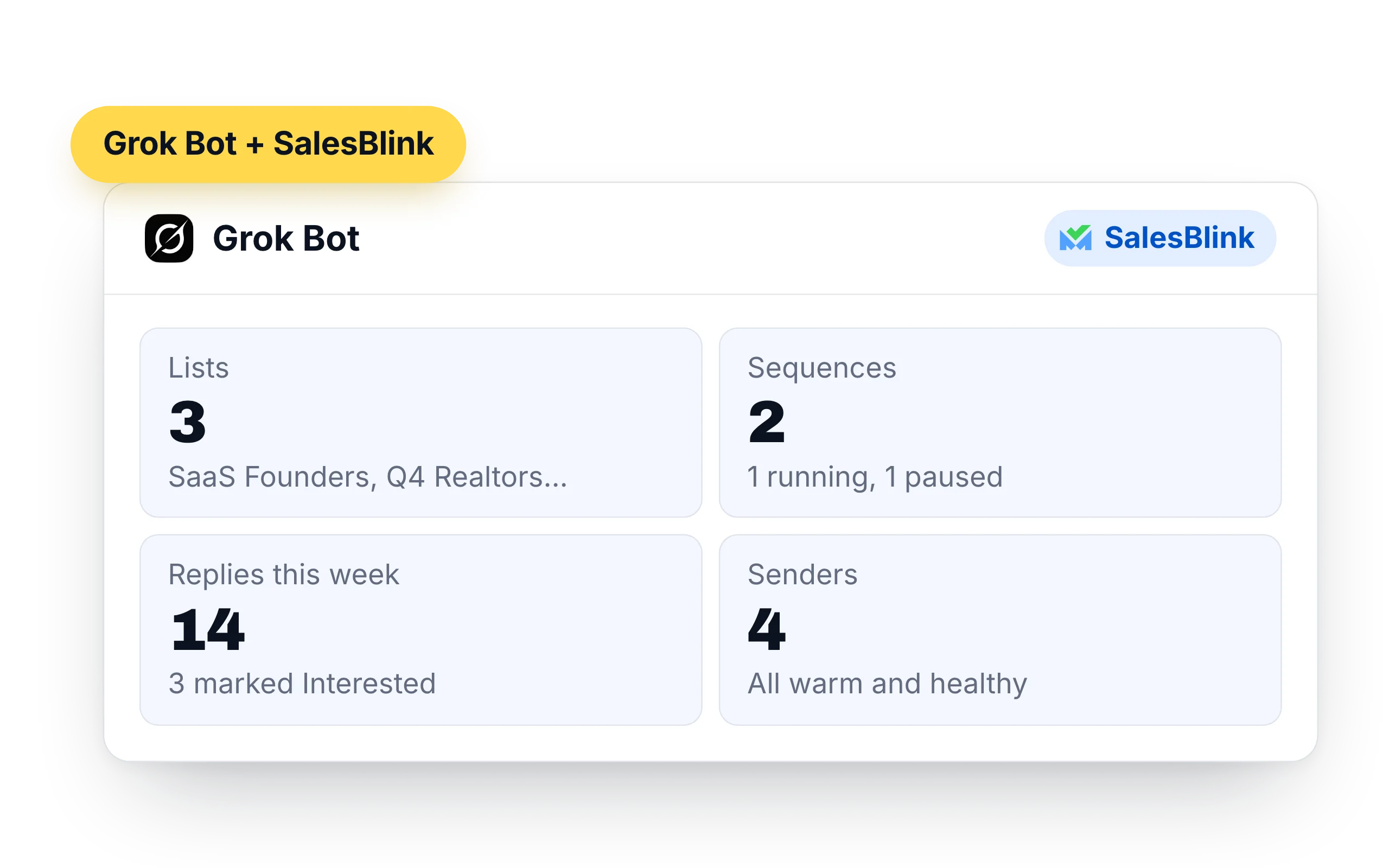
What Grok Bot can do in your SalesBlink account
Once SalesBlink is connected, every bot you run can use it. Attach it to a task with @ and the bot works in your SalesBlink account from its own computer.
- Lists and leads: create lists, add up to 500 contacts at a time, look up leads and move them between lists
- Sequences: create, clone, launch and pause cold email sequences, and pull their stats
- Replies: read reply threads from the Unified Inbox, answer them and forward messages
- Senders: check sender health and warmup stats, and run an inbox placement test
- Templates and workspaces: create email templates and switch between client workspaces
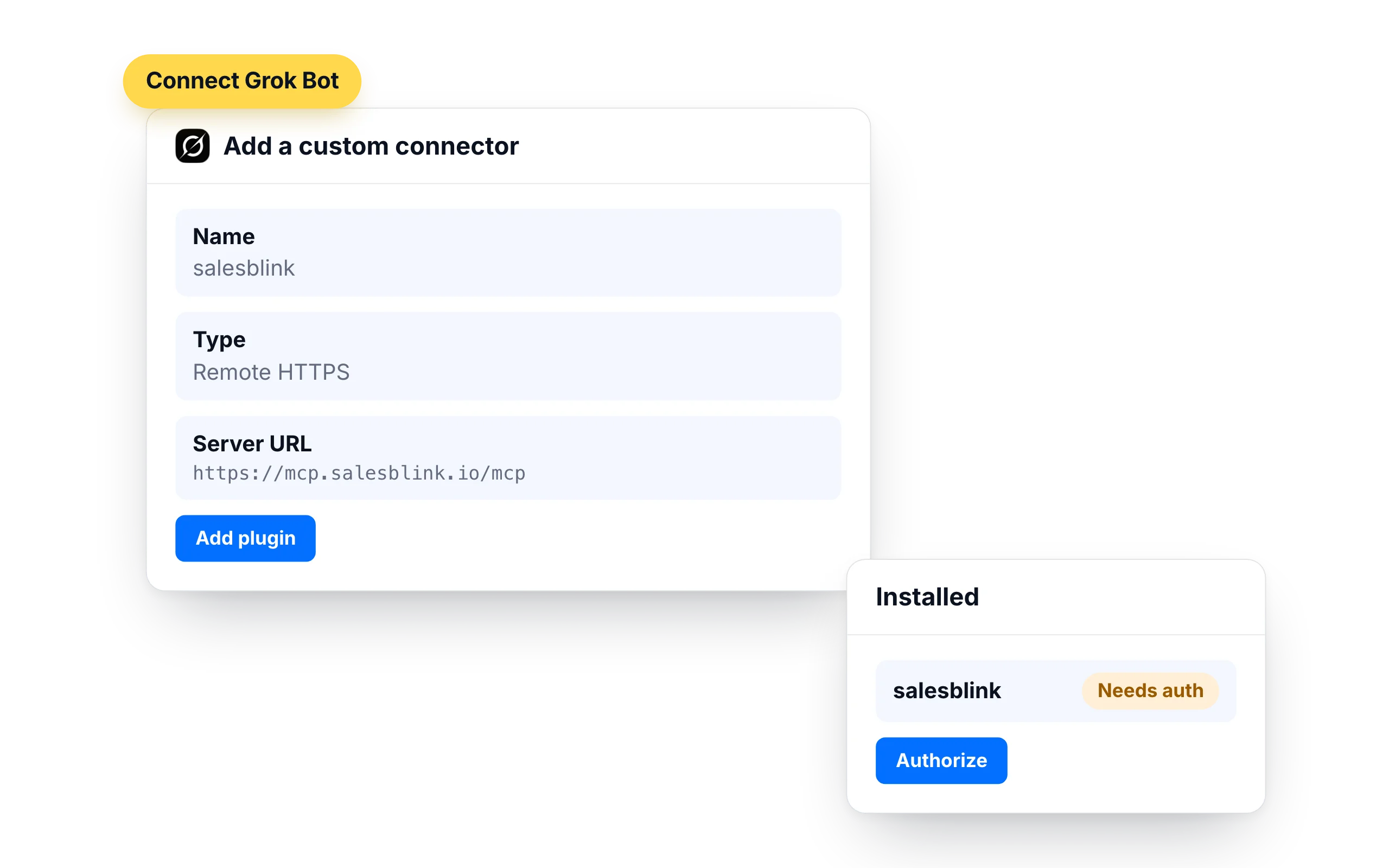
How to connect Grok Bot to SalesBlink
Connected apps are account-wide in Grok Bot, so every bot you run can use SalesBlink once you add it.
- Open Connect apps from the sidebar and choose Add a custom connector at the bottom
- Enter the name
salesblink, pick Remote HTTPS and pastehttps://mcp.salesblink.io/mcpas the Server URL - Choose Add plugin to save it
- When you are asked to Authorize, finish the SalesBlink sign-in in your browser, then check that it is listed under Installed
- Type @ in a chat, attach salesblink and ask the bot to show your lists
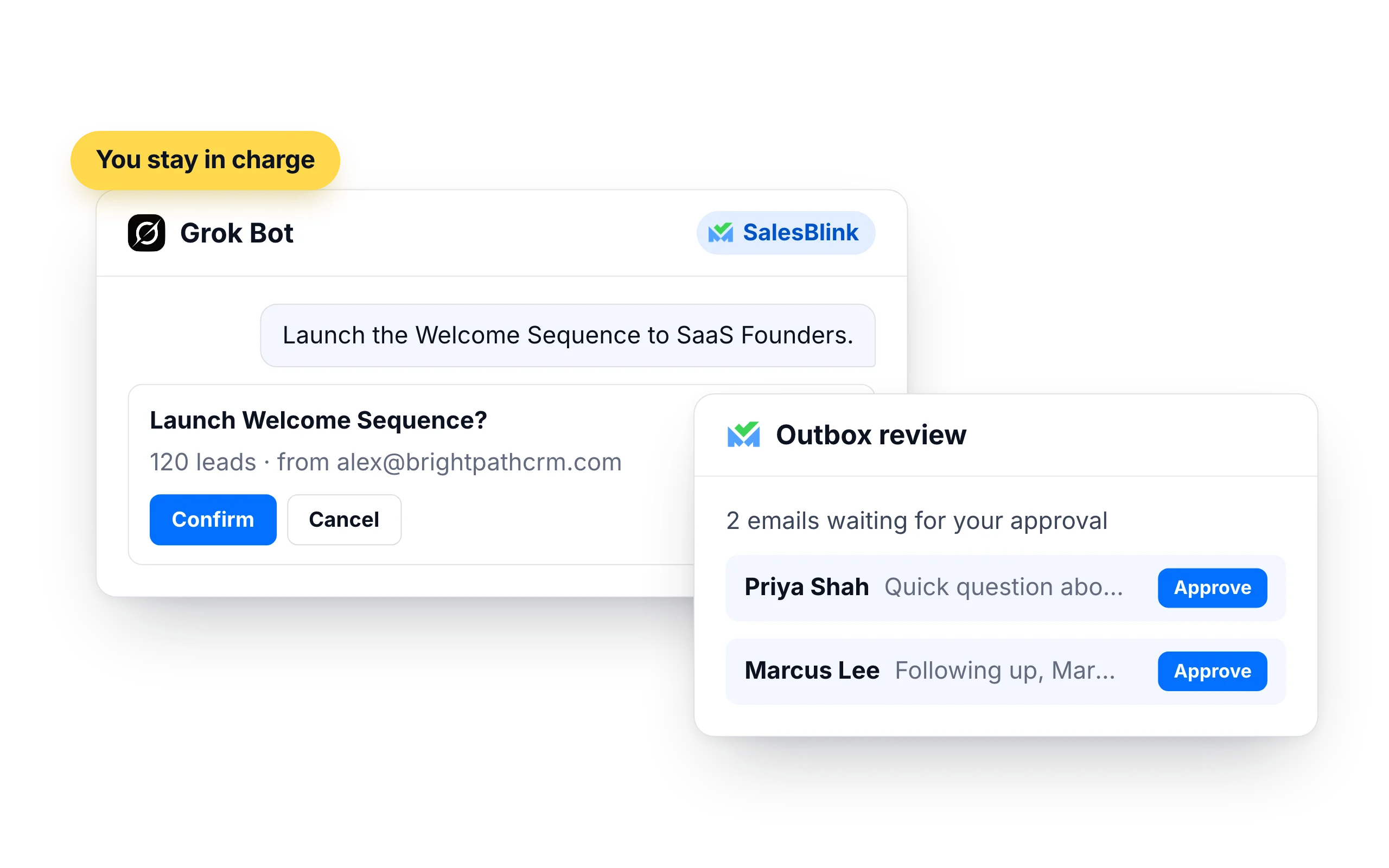
You stay in charge of what gets sent
A Grok Bot has to get your confirmation before it launches or resumes a sequence. A routine can prepare everything, and the send still waits for you.
- Turn on Outbox review in a sequence's settings and every email waits for your approval
- Emails go out from your own SalesBlink senders, inside their daily limits and sending schedule
- Each time Grok Bot adds contacts it has to state where they came from, such as an opt-in list, a CRM export or an event
- You can also write rules for your bots in Settings → General → Agent, for example to always ask before changing a sequence
What customers say
4.7/5 on Capterra (286 reviews)4.5/5 on G2 (311 reviews)
5.0 on Capterra
“I like how SalesBlink connects with AI and my own code, making the email outreach process faster and easier. This integration allows me to build sequences quickly and carry out email outreach with automatic follow-ups.”











Frequently Asked Questions
What is Grok Bot?
Grok Bot is an agent from xAI that has its own cloud computer and keeps running after you close your laptop. It can follow routines, react to events in other apps and use connected apps, including custom MCP servers.
How do I connect Grok Bot to SalesBlink?
Open Connect apps, choose Add a custom connector, pick Remote HTTPS and enter https://mcp.salesblink.io/mcp as the Server URL. Save it with Add plugin, then authorize it by signing in to SalesBlink.
Can I ask the bot to add SalesBlink for me?
Yes. A bot can add a server by its URL. Ask it to add a custom MCP server at https://mcp.salesblink.io/mcp, and it shows a Connect card when you need to sign in.
Is one SalesBlink connection shared by all my bots?
Yes. A connected app is available to every bot you run, so decide which bots should be asked to use it.
SalesBlink shows "Disabled by team admin". What now?
On a team account, an admin decides which connectors members can use. Ask your admin to allow the SalesBlink server in the team's Plugins & MCPs settings, then restart the app.
Is this the same as connectors in Grok chat?
No. Grok chat on grok.com has its own Connectors page, where you can add https://mcp.salesblink.io/mcp as a custom connector. Grok Bot is set up separately, under Connect apps.
Can a Grok Bot launch a sequence on a routine?
Launching and resuming a sequence need your confirmation. A routine can prepare the list and the sequence and report back, and you confirm the launch.
Do I need a SalesBlink account?
Yes. Grok Bot connects to your SalesBlink account through a sign-in that you approve, so you don't need an API key. You can start with the 14-day free trial.
Can Grok Bot send emails without asking me?
Grok Bot asks you to confirm before it launches or resumes a sequence. You can also turn on Outbox review so every email waits for your approval.